Access
Build roles from permissions, assign them and the built-in Platform Admin, Auditor and Member roles to directory users or groups, and control who can reach each area of Admin
Access is where you decide who administers your tenant. Everyone who signs in is a Member by default: they see and work in the organizations and projects shared with them, at the level each is shared at, and use every console page but Guardrails. What else a person can do comes from the roles they hold. A role is a bundle of permissions, each opening one area of Admin. AskRAI ships three built-in roles, and you build your own from the permissions you choose. Manage both under Admin → Access, which has two tabs: Roles and Assignments.
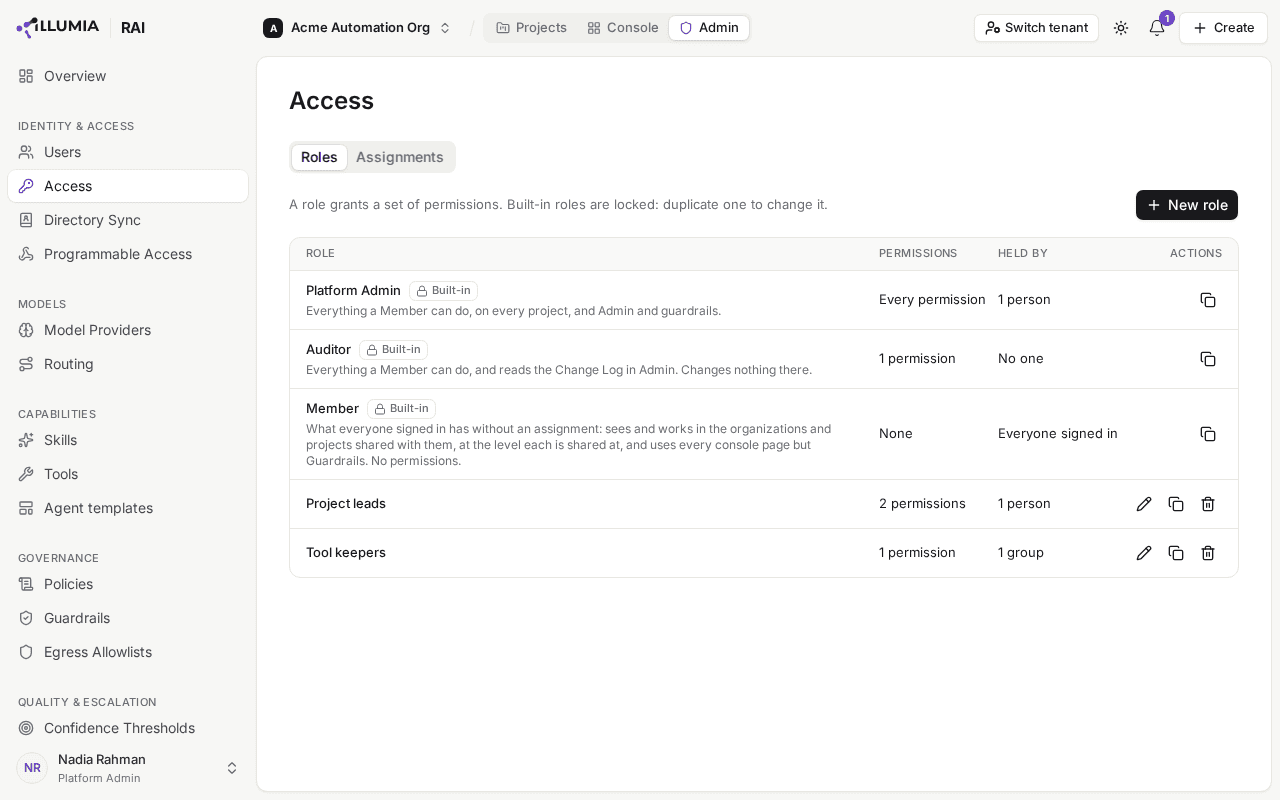
The Roles tab lists the built-in roles first, then the ones your tenant built, each with how many people and groups hold it.
How roles work
A person holds every role assigned to them directly, and every role assigned to an active group they are in. What they can do is the union of those roles' permissions: holding a permission through any one role is enough, and no role takes away what another grants. To see where each of a person's permissions comes from, and the organizations and projects shared with them, open them under Admin → Users and choose the Access tab (User details drawer). The user menu at the bottom of the sidebar names the one role you hold, or how many you hold.
| Role | What it grants | Who should hold it |
|---|---|---|
| Platform Admin | Every permission, including any added later: the full Admin surface, and guardrails wherever they appear | The small group who configure the tenant |
| Auditor | View change log: reading the Change Log, the record of who changed what in Admin. Otherwise what a Member has | Whoever reviews how the tenant is configured without changing it, such as compliance or internal audit |
| Member | The organizations and projects shared with them, at the level each is shared at, and every console page but Guardrails. No permissions | Everyone else: the default for any signed-in user |
| A role you build | The permissions you chose for it | Whoever does that job, such as the people who look after your tools |
The built-in roles are locked: you can't edit or delete them. To start a role from one, Duplicate it and change the copy.
Members are not locked out of the product. A Member keeps full use of the console (Dashboard, Log, Tickets, Knowledge Packs, Knowledge Base, Sandbox), and works in each project shared with them as far as its level allows. What a Member cannot do is reach Admin or work with guardrails. Neither the Admin control nor the console's Guardrails page appears in their navigation, and either address opened directly returns them to Projects. The one part of Admin a Member can reach is Organizations, once they are Admin on an organization. The Sandbox offers them no guardrails to test with, the Log no false-positive flag, and they cannot attach or detach an agent's guardrails, even in their own projects. The one exception is an agent template: an agent a Member creates from one still gets the guardrails a template admin published in it, since a template only ever adds controls.
You never have to assign the Member role. A user with no assignment at all is already a Member. Assigning Member explicitly is only useful as documentation: a visible record that you considered this person and deliberately left them without administrative access.
Permissions
Most permissions open one area of Admin, and a person holding any of them sees the Admin control with only those areas in it. Administer every project opens none by itself: it acts on projects wherever they appear. Admin → Organizations also opens to someone who holds no permission but is Admin on at least one organization, such as one shared with them at Admin. Most areas come as a pair: View opens the area's pages read-only, and Manage changes them and includes View, so a role needs only one of the two. The role editor lists them in these sections:
| Section | Permission | What it lets its holder do |
|---|---|---|
| Organizations & projects | Create organizations | Create organizations, each one its creator's to administer, from Admin → Organizations or the header org switcher |
| View every organization and project | Read every organization and project as if each were shared with them at Read, and open Admin → Organizations read-only | |
| Administer every organization | Admin on every organization, and so on every project in each: rename, delete and share them. Includes View every organization and project and Create organizations | |
| Administer every project | Admin on every project: share, reset and delete them, and decide their proposals | |
| People & access | View users & groups | Read users, native groups and their members, and the knowledge-pack roles |
| Manage users & groups ⚠ | Edit users and native groups, and who is in each group | |
| View roles & assignments | Read every role on this page, what it grants and who holds it | |
| Manage roles & assignments ⚠ | Build roles and assign them on this page, within the permissions they hold | |
| View directory sync | Read how SCIM and Google Workspace provisioning are set up, the directory they provision and which groups follow it | |
| Manage directory sync ⚠ | Connect SCIM or Google Workspace provisioning, link directory groups to native ones, and be notified when a sync fails | |
| AI models | View model providers | Read the connected model providers, their models and usage, but not their stored keys |
| Manage model providers | Connect the tenant's own model providers and models, reveal their stored keys, and test a model | |
| View routing | Read which model answers which query, under Routing, and every published version | |
| Manage routing | Choose which model answers which query, and publish or roll back a version | |
| View confidence | Read the score bands that classify an answer's confidence | |
| Manage confidence | Set the score bands | |
| Governance | View policies, guardrails and egress | Read every policy, guardrail and egress allowlist in full, what governs each agent, the console's Guardrails page, and choose guardrails to try in the Sandbox |
| Manage policies, guardrails and egress | Author them, test a guardrail, attach them to agents and groups, and flag a guardrail's result as a false positive | |
| View escalation rules | Read the rules that escalate an answer | |
| Manage escalation rules | Set the rules, and be notified of the tickets they raise | |
| Agent building blocks | View skills | Read the skill library, each skill's versions and the agents that use it, and pick skills for an agent |
| Manage skills | Add skills and publish their versions, add them to organizations, and move an organization's agents onto a new version | |
| View tools | Read tool servers and builtins, their tools, releases and test runs, the calls agents made from projects shared with you, and the agents that use them | |
| Manage tools | Register tool servers and builtins, grant them to organizations, and be notified when a hosted server is held or moved onto a platform update | |
| View agent templates | Read agent templates, their versions and readiness, and suggested ones | |
| Manage agent templates | Publish agent templates, grant them to organizations, export and import them, and review suggested ones, of which they are notified | |
| Programmable access | View credentials | Read the API, CLI and MCP credentials of Programmable Access, their limits and usage, and which interfaces are on, never a secret |
| Manage credentials | Create, rotate and revoke credentials, and turn each interface on or off | |
| Oversight | View change log | Read the Change Log: who changed what in Admin, and when |
⚠ marks a sensitive permission, one that decides who holds the others. Manage users & groups changes who is in the groups that roles are given to, and Manage directory sync links a group to your directory and provisions who is in it, so the holder of either can hand a group's roles to anyone, Platform Admin included. Manage roles & assignments hands out roles. Give these three to as few people as you can.
Administer every organization was called Manage organizations, and a role that held it holds it still. It now also gives Admin on every organization and every project, so its holders can share, reset and delete any project and decide its proposals. Check who holds it, and give Create organizations instead to someone who should only create organizations.
View-only areas
A person holding an area's View but not its Manage opens its pages and reads everything on them, and changes nothing. A View only note at the top of the page names the permission a change needs. Buttons that would change something, such as Add Group or New role, stay in place but greyed out, and say which permission they need when you point at them or move to them with the keyboard. Actions on a single row, such as removing an assignment, are not shown, and anything you open, a group, a role or a guardrail, opens read-only, with its fields greyed out and no save button. On an agent's Guardrails tab, a holder of View policies, guardrails and egress sees what is attached and what governs the agent, and changes none of it.
Testing a model or a guardrail needs the area's Manage, since a test is part of setting one up. A model provider's stored keys are never shown to a holder of View alone.
Notifications meant for an area's admins, such as a failed directory sync or a new escalation ticket, go only to the holders of its Manage permission.
You can only grant what you hold
Nobody can give out more than they have. A holder of Manage roles & assignments:
- saves a role only if they hold every permission in it, and edits one only if they also hold every permission it held before, since taking a permission away from its holders is like removing their role;
- assigns, removes or deletes a role only if they hold every permission it grants.
The same holds for the groups roles are given to, since a group's members hold its roles and its organization and project grants. Whoever adds or removes a member, makes the group active or inactive, deletes it, or links it to a directory group holds every permission its roles grant, and Admin on every organization and project the group is shared with. So does whoever chooses what feeds the directory, which decides who is in every group linked to it: generating the SCIM token, switching SCIM on, and setting up or switching on Google directory sync. The refusal names the permissions, organizations or projects missing.
Blocking or unblocking a person takes away or gives back every role they hold, so it too needs every permission their roles grant.
Only a Platform Admin assigns or removes Platform Admin, changes who is in a group that holds it, or blocks or unblocks someone who holds it. When one of these rules stops a change, AskRAI names the permissions you are missing.
Decisions made per project
What a person may see and do in a project is held to its access levels rather than to a role. Someone with no level on a project does not see it, and Read opens it and shows everything in it, changing nothing. Only someone with Write access to the project or above can:
- send its messages, work its tasks, and start, pause and stop its team;
- approve or reject its agents' proposals;
- add, re-parent or remove the people on its team;
- add agents at Manual approval, and change any of an agent's settings but its autonomy;
- create, rename, move, upload, delete or restore its workspace files and folders.
And only someone with Admin access to it can:
- change an agent's autonomy;
- edit the project: its name, description, status, budget and idle check-in;
- Reset the project;
- delete one of its agents;
- delete the project;
- share it, and change or remove its grants.
None of these is a permission. A project's Admins give each level from its Share dialog, to a person, a group or everyone in the tenant. A Member creates projects in an organization they hold Write on, is Admin on each one they create, and holds whatever level each other project is shared with them at. Admin on a project also comes from Admin on its organization, and from Administer every organization or Administer every project, the only permissions on this page that reach these decisions. A Platform Admin holds Admin on every project. Everyone on a project's team when access levels arrived was made its Admin, and nobody else was given anything: a project whose team had no people then has no Admin grant, and its organization's Admins, the holders of those two permissions or a Platform Admin share it. Share your organizations and projects before your members sign in, or they see none of them.
An agent's skills and governance are attached only by the holders of those permissions, whatever their level on the project. For a limit on autonomy that holds whoever edits an agent, attach a policy whose Maximum autonomy is Manual.
The first Platform Admin
You do not have to bootstrap access by hand. The first genuine user to sign in to a tenant is promoted to Platform Admin automatically, so the tenant is never left with nobody who can administer it. Every user who signs in after that is a Member until an admin says otherwise. A tenant whose only Platform Admin assignment is to an inactive or empty group counts as having none, so the next person to sign in who holds no role is promoted the same way.
Building a role
Open the editor. On Admin → Access, in the Roles tab, click New role. To start from an existing role, a built-in one included, click its Duplicate button instead: the editor opens as a new role named "Copy of …" with that role's permissions.
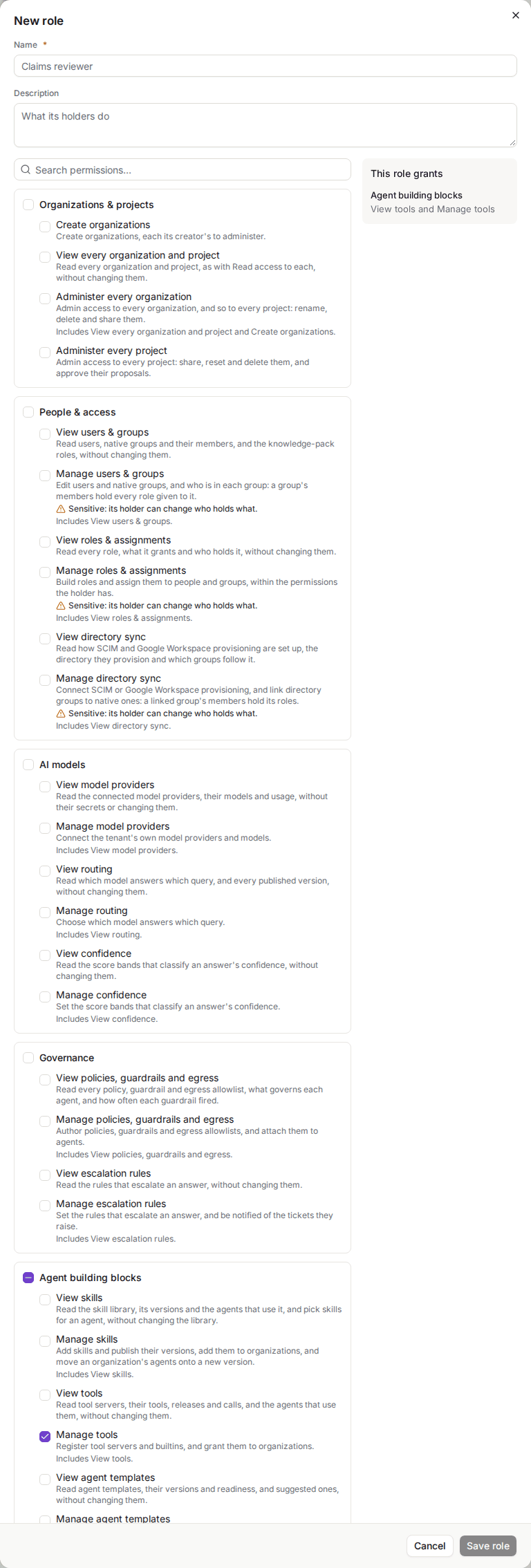
Each section's checkbox is clear, mixed or checked as none, some or all of its permissions are selected.
Name it. Give the role a Name of up to 80 characters, unique in your tenant whatever its capitals, and not the name of a built-in role. A Description of up to 500 characters says what the role is for.
Choose its permissions. Tick single permissions, or a section's checkbox to select every permission in it. Type in Search permissions to narrow the list by name or description. A permission you don't hold yourself is shown greyed out, since you can't give it away; when you duplicate a role, those are left out of the copy, and the editor says how many.
Check the summary and save. The summary lists what the role grants, by section, and for an existing role how many people and groups hold it. Click Save role.
A role can hold no permissions at all, which makes it a label: its holders are Members like everyone else.
Editing and deleting a role
Click Edit on a role you built to change its name, description or permissions. The change reaches everyone who holds it on their next request: a person who loses a permission can no longer use that area, though a page they already have open shows it until they reload. If someone else changed the same role's permissions since you opened it, saving is refused, so you can reopen it and see their change before making yours.
Click Delete to remove a role. The confirmation names how many people and groups hold it, and deleting it takes it away from all of them. You can't edit or delete a built-in role.
Assigning roles
The Assignments tab lists each person and group once, with every role assigned to them.
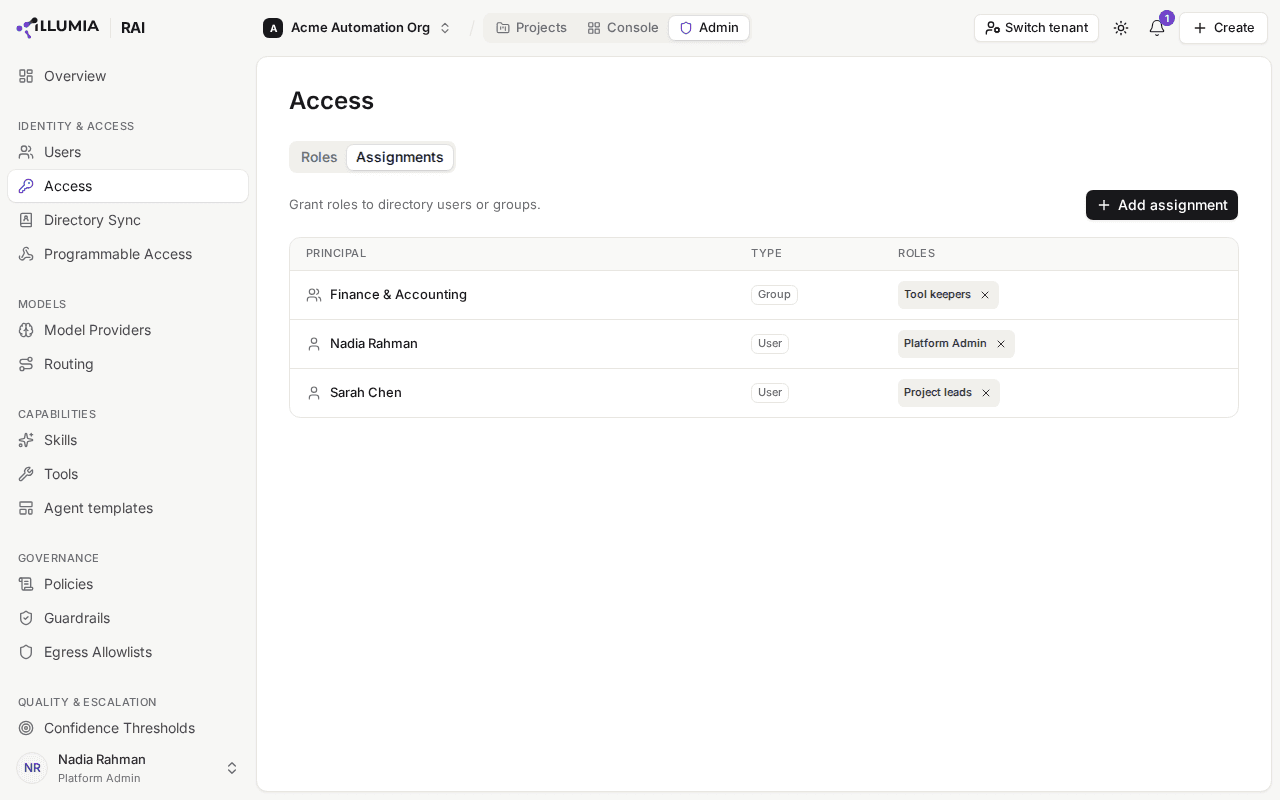
Each person and group appears once, with all of their roles.
Open the dialog. On Admin → Access, in the Assignments tab, click Add assignment.
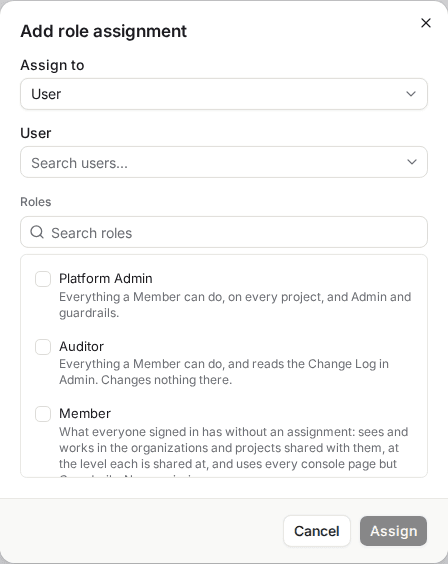
Choose whether you are granting roles to a user or a group, pick the principal, and check the roles.
Choose what you are assigning to. Set Assign to to User or Group. Switching between them clears the picker, so you cannot accidentally submit a user you selected as a group.
Pick the principal. Type in the picker to search your directory. The list searches the server as you type, so you are never limited to a first page of results: anyone in the directory can be found by name or email.
Choose the roles. The Roles list starts with none checked and offers the built-in roles, then the ones your tenant built, each saying what it grants. Check every role to assign, then click Assign, which waits until a principal and at least one role are chosen. The new assignments appear immediately in the table.
Each role is assigned on its own. If some can't be assigned, for example because one grants a permission you don't hold, the dialog stays open with only those roles still checked, and names each of them with the reason. The others are assigned.
Assigning is idempotent: granting a role a principal already holds changes nothing and reports no error, so it is safe to re-run.
Assigning to a group
Granting a role to a group is the better choice for anything but a one-off. Everyone in the group holds the role, and membership is managed where it belongs, in your identity provider through Directory Sync, rather than in a list you have to remember to update when someone joins or leaves.
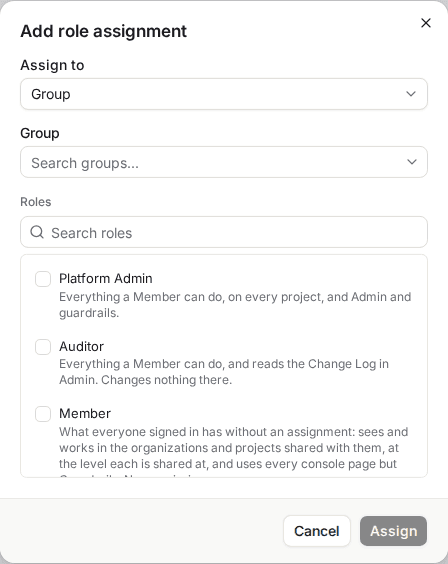
Grant a role to a group and every member of that group holds it, with membership managed in your identity provider.
A group passes on its roles only while it is active: the moment a group is made inactive, its members lose its roles on their next request, while its assignments stay listed here for when it is active again. Deleting a group removes its assignments with it.
You can only assign a role to a user or group that exists in your directory. If someone is missing from the picker, provision them through Directory Sync first: AskRAI will not grant a role to an identity it does not know.
Removing an assignment
Click the × on a role in the Assignments tab to revoke that one grant. The user, or every member of that group, drops back to whatever their remaining roles give them, usually Member.
The tenant always keeps at least one admin. Removing or blocking the last Platform Admin who is assigned directly to a user and can sign in is refused, so a tenant can never lock itself out. An admin who is blocked, or whom your directory has deprovisioned, cannot sign in, so does not count. A group assignment does not satisfy this: a group can be emptied in your identity provider, which would strip the tenant's last admin. Grant Platform Admin to at least one individual user, and assign the second admin before removing the first.
A change to who holds what takes effect on the person's next request. A user whose role you just changed may need to reload the console to see Admin areas appear or disappear.
Field reference
Roles tab
| Column | Description |
|---|---|
| Role | The role's name; a built-in role is marked Built-in |
| Permissions | How many permissions it grants: Every permission for Platform Admin, None for a role with none |
| Held by | How many people and groups are assigned it directly; Everyone signed in for Member |
| Actions | Duplicate on every role; Edit and Delete on the roles you built. A holder of View roles & assignments alone has an eye button in their place, View, which opens the role read-only |
Role editor
| Field | Description | Required |
|---|---|---|
| Name | Up to 80 characters, unique in your tenant ignoring capitals, and no built-in role's name | Yes |
| Description | Up to 500 characters | No |
| Search permissions | Narrows the sections and permissions shown | No |
| Permissions | The permissions the role grants, each section with its own checkbox | No |
Assignments tab
| Column | Description |
|---|---|
| Principal | The user or group holding the roles, shown by display name, once |
| Type | user or group |
| Roles | Every role assigned to them, each with an × that revokes it for someone who can manage roles and assignments |
Add role assignment dialog
| Field | Description | Required |
|---|---|---|
| Assign to | Whether the roles go to a User or a Group | Yes |
| User / Group | The directory principal, found by typing to search | Yes |
| Roles | One or more built-in roles or ones your tenant built, found by typing to search | Yes |
Troubleshooting
| Symptom | Cause | Fix |
|---|---|---|
| A user sees no organizations or projects, and Projects reads Nothing is shared with you yet | Nothing is shared with them, and none of their roles holds an Organizations & projects permission | Share an organization or project with them, or assign a role holding View every organization and project |
| A user cannot see the Admin control | None of their roles grants a permission: they are a Member | Assign them a role that grants the areas they need, directly or through a group |
| A user opens an Admin link and lands on Projects | They hold no permission for that area | As above |
| A user sees only some Admin areas | Their roles grant only those areas, as Auditor grants the Change Log alone | Assign a role that also grants the areas they need |
| A page says View only, and its buttons are greyed out | The person's roles grant that area's View permission but not its Manage | Assign a role holding the Manage permission the note names |
| A permission is greyed out in the role editor | You don't hold it, so you can't give it to a role | Ask someone who holds it, such as a Platform Admin |
| Saving, assigning or removing a role is refused, naming permissions | The role grants, or held, permissions you don't hold | Ask someone who holds them, such as a Platform Admin |
| A group's members don't have its role | The group is inactive | Make the group active again, or assign the role to an active group |
| A role change has not shown up in the console | The console read the permissions before the change | Reload the console |
| The person you want is missing from the picker | They are not in the synced directory | Provision them through Directory Sync |
| Removing an admin is refused | They are the tenant's last user-assigned Platform Admin who can sign in: every other one is blocked or deprovisioned by your directory | Assign Platform Admin to another user who can sign in first, then remove |
Related pages
- Users, Roles & Groups: the directory users and native groups you assign roles to here
- Directory Sync: provision the users and groups that appear in the picker
- Access Control: how these roles differ from the resource-access roles that govern knowledge and guardrails
- Programmable Access: authenticate machines and agents, which are governed separately from the people on this page
- Admin: every area a permission opens