Agent Templates
Author reusable agent configurations, version them, grant them to organizations, save an existing agent as one, and review the agents projects suggest
An agent template is a complete agent configuration — its prompt and goals, its model and parameters, its skills, tools, governance, workspace access, knowledge packs, heartbeat and budget — kept once and reused. Admin → Agent templates is where your tenant's templates are written, versioned and granted to organizations. Open it with the Admin control in the top navigation bar, then choose Agent templates under Capabilities.
Agent templates are administered by the holders of Manage agent templates; View agent templates reads every template, its versions and readiness, and the suggestions, read-only. Editing a template's draft changes nothing anyone else sees: only a published version is what the organizations it is granted to will create agents from.
A project's members create agents from the published templates granted to its organization, on the project's Add agent → From template tab.
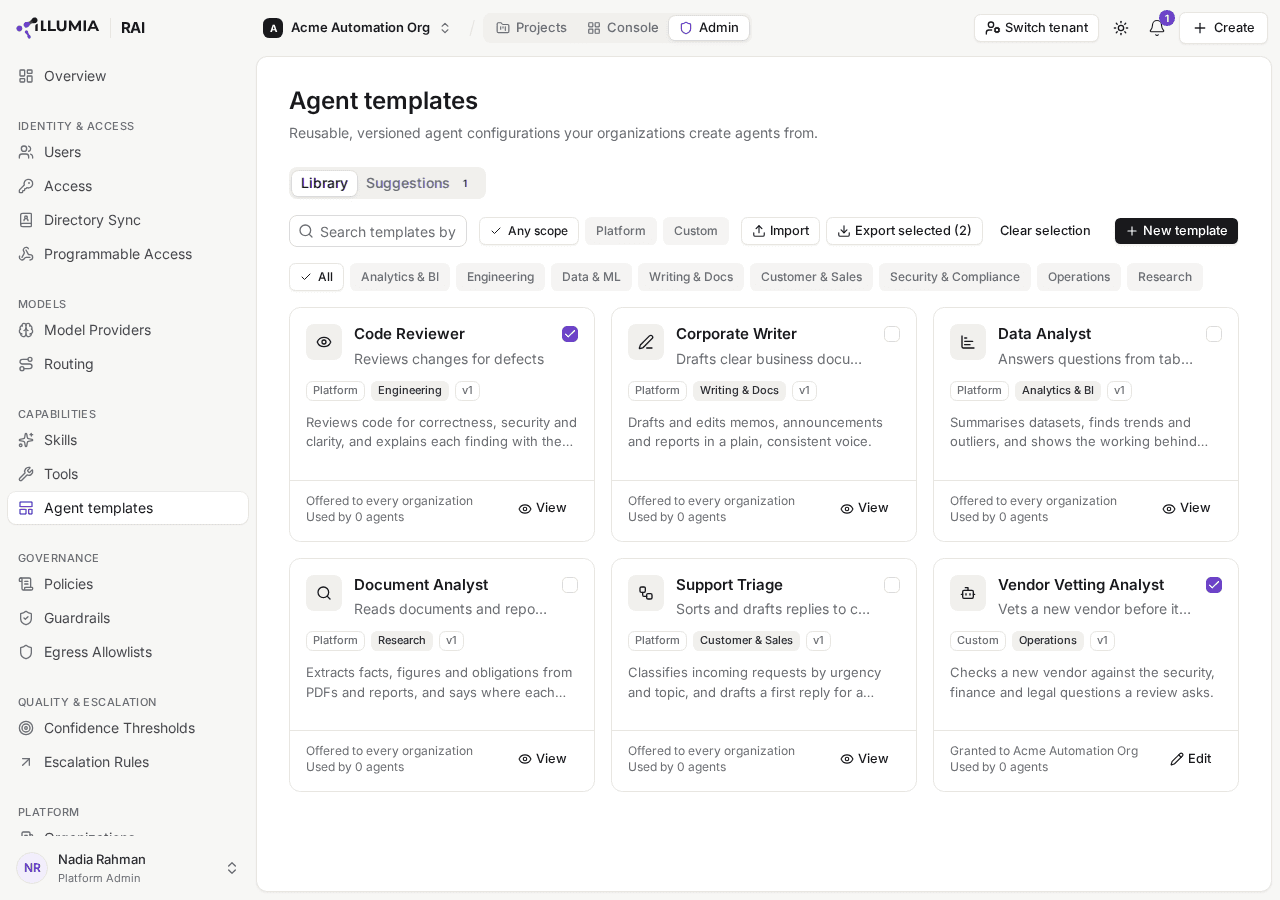
Each card carries the template's live version, whether its draft is ahead of it, the organizations that may use it, and how many agents were made from it; a platform template is offered to every organization. Tick cards to export them together.
A template belongs to the tenant, granted to organizations
A template is written once for the whole tenant and granted to the organizations that may use it, the way a tool server is. Each organization resolves the template against what it has: its own skills and the platform skills it adopted, the tool servers granted to it, and the governance that applies to it. A template written in one organization can therefore be ready in one organization and partial in another — the Readiness tab shows exactly how.
Create a template
Choose New template, give it a Name and a Category, and choose Create.
The editor opens on the new draft. Fill in its tabs — Overview, Behavior, Skills & Tools, Guardrails, Heartbeat & Budget and Workspace — and choose Save draft. They are the same forms an agent has, so a template is configured exactly as an agent is.
On the Overview tab, tick the organizations that may use the template under Organizations and choose Save organizations.
Choose Publish, optionally with a change note.
Publish and Duplicate act on the saved draft, so they wait until your edits are saved. A template never published is in no organization's gallery.
Save an existing agent as a template
An agent that is already configured well is the fastest start. In the agent's pane, choose Save as template. The agent's configuration becomes a new, unpublished draft, granted to the agent's organization, and you can open it in Admin to refine and publish it. The agent itself is not changed.
What carries over is configuration, never the agent's place in its project: its name in the project, who it reports to, its run history and spend stay behind. The workspace folders it may read and write are kept as paths from the workspace root, so the template can be used in any project.
Suggestions
The people with Write access to a project who cannot manage templates themselves can still put one of its well-configured agents forward: Suggest as template in the agent's pane sends its configuration, as it stands at that moment, with a note — see the Team page. Each agent has at most one suggestion waiting at a time.
Everyone who can manage agent templates hears of a new suggestion on the notifications bell, and the Suggestions tab of this page lists them, newest first, with a count of those waiting on the tab. Filter by Pending, Approved, Rejected or Withdrawn, or show All.
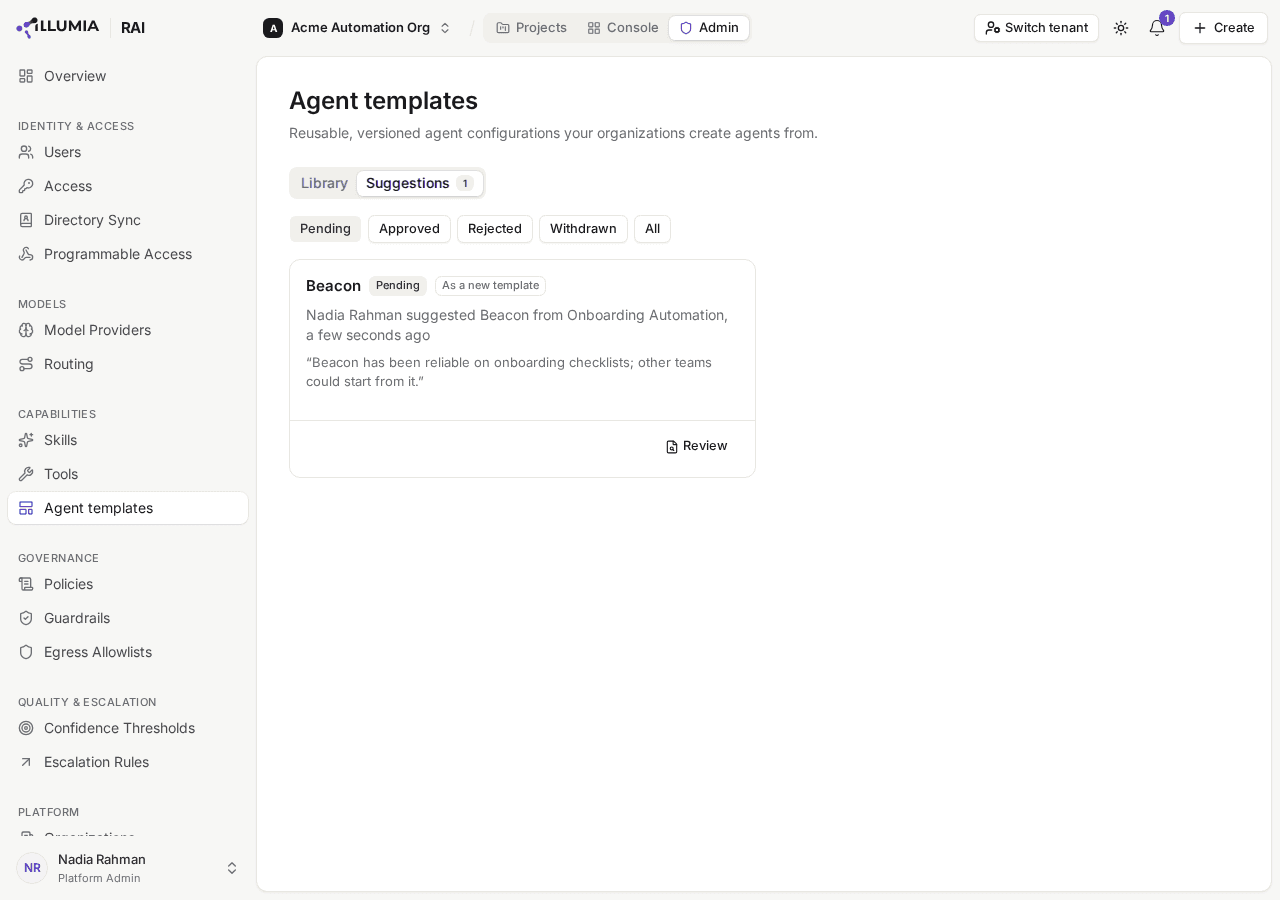
Each suggestion says who suggested which agent from which project, whether it would be a new template or a new version, and the note it came with.
Choose Review on a suggestion. It opens in the same editor as a template, with the same tabs: the note it came with, who suggested it and from which project are in its header.
Edit anything you want changed before it is published. Readiness shows what it would apply, with your edits, in the organizations it would be offered to.
Choose Approve & publish, optionally adding a note of your own — or Reject, with a reason the suggester is told.
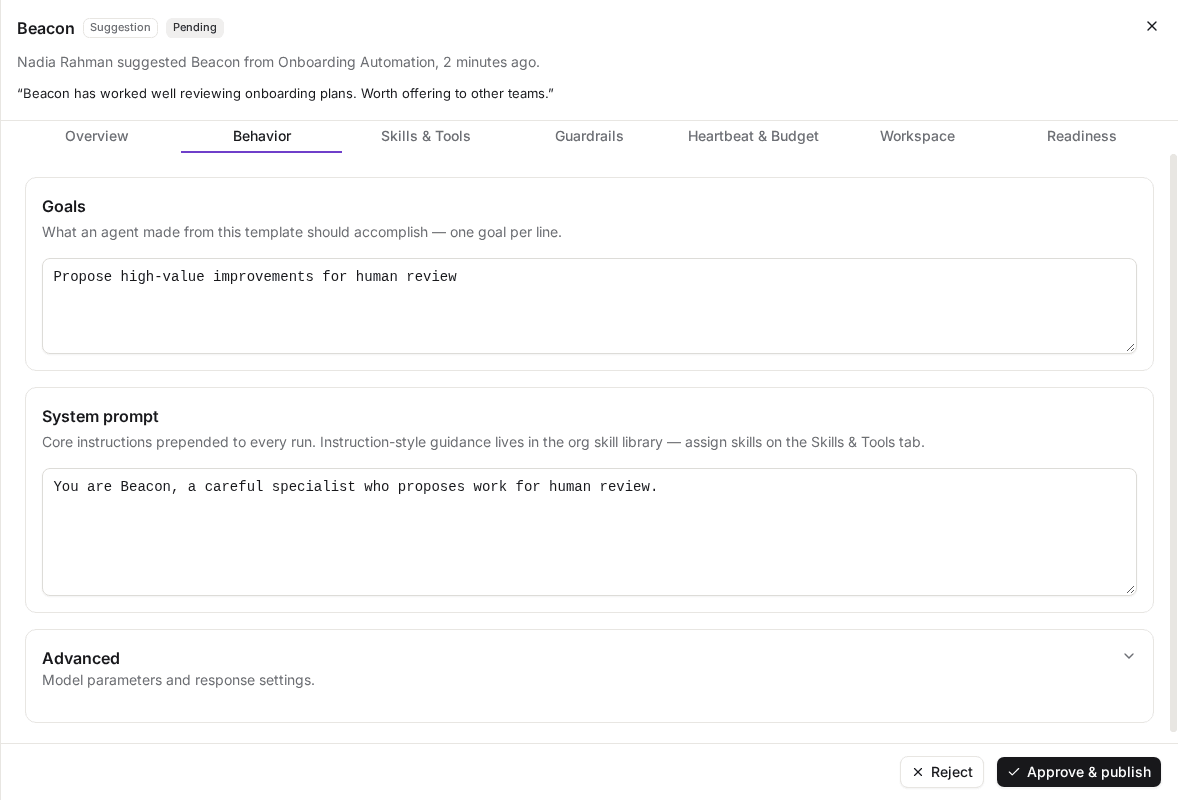
A review is the template editor over the suggested snapshot: edit any tab, then approve or reject.
Approving publishes it at once, with a change note saying who suggested it and from which agent and project:
- As a new template, granted to the organization of the project it came from. Grant it to more on its Overview tab once it is published.
- As the next version of a template, when it was suggested as a new version of the template its agent was made from. That template keeps the organizations it is granted to, and its name, role, category, icon, description and tags as members see them, rather than the agent's; change them in the review if you mean to. If its draft held no unpublished changes, the draft moves to the new version too; unpublished work of yours in the draft is left alone. A suggestion whose template was deleted since is published as a new template.
A few things are worth knowing:
- The suggestion is a snapshot. The agent may change after it was suggested, and the review says so when it has; what you approve is what was suggested, with your edits. A suggestion whose agent was deleted can still be reviewed.
- Suggesting and deciding are separate permissions. Anyone who can manage agent templates can review any suggestion. Its version is marked Suggested, and marked again when its own suggester decided it.
- The suggester can withdraw it while it waits.
The workspace a template names
A template belongs to no project, so its Workspace tab names folders by path — Reports/Q3 — rather than picking them from a tree. When an agent is made from the template in a project, each path is looked up there.
The same rules apply as on an agent: write access never reaches beyond read access, and a write scope limited to folders needs a default folder inside it.
The knowledge packs a template names
The Knowledge card on the Workspace tab attaches knowledge packs to the template, each with a When to search it note, as on an agent. A template belongs to no project, so the picker offers every pack of your tenant. Save as template keeps an agent's packs and their notes.
When an agent is made from the template, each pack applies where the agent's organization is granted it, in the pack's Organizations section. Where the template's own pack is not granted, a granted pack of the same name stands in for it, shown as matched by name. Any other pack is not applied: not granted to this organization, deleted, or not in this tenant. Unlike a missing control, a pack that is not applied never holds the agent at Manual approval: a pack only adds what the agent can look up.
Readiness: what applies in each organization
The Readiness tab resolves the saved draft against every organization the template is granted to, one card each, marked Ready or with how many items would not be applied. Every reference the template makes comes out as one of:
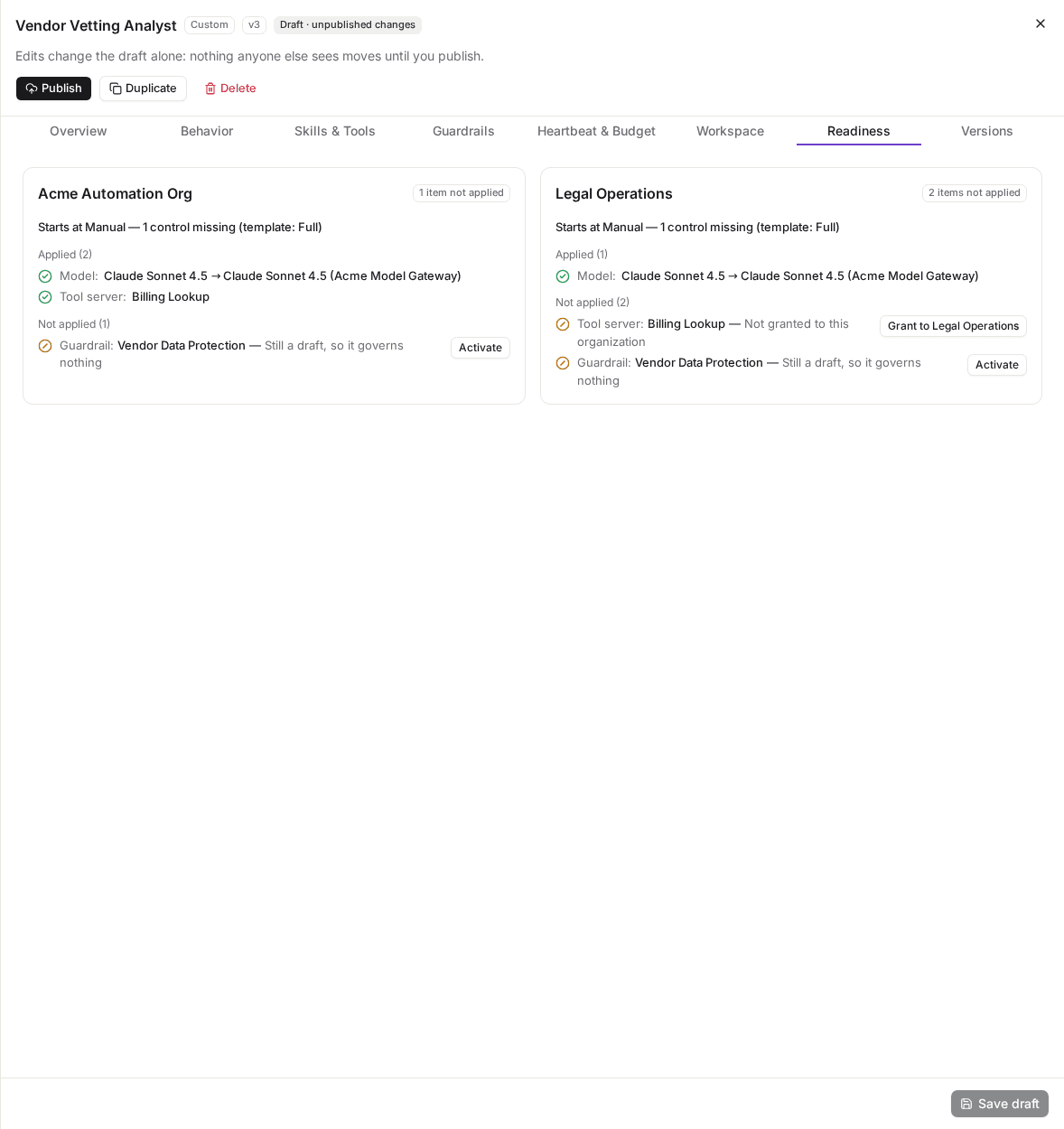
The same template is ready in the organization it was written in, and partial in one its tool server is not granted to.
| Outcome | Meaning |
|---|---|
| Applied | The exact skill, tool server, control, knowledge pack or model the template names is available here. |
| Matched | The exact one is not, but an equivalent is: a skill or knowledge pack of the same name, a tool server with the same identifier, or the platform's own copy of a platform control. Shown with what it was matched by. |
| Not applied | Nothing here can stand in for it. The reason is shown: not granted to this organization, not adopted, unpublished, a draft, inactive, deleted, or not in this tenant. |
A few rules are worth knowing:
- A control is never matched by name. A guardrail, policy or egress allowlist applies only as the exact control the template names. A same-named control elsewhere may be weaker.
- A missing control holds the agent at Manual. When a guardrail, policy or egress allowlist does not apply in an organization, an agent made there starts at Manual approval, whatever the template's autonomy, and Readiness says so.
- A tool narrowed to some of its tools stays narrowed. When none of the tools a grant names are approved in an organization, the grant is left out entirely rather than widened to the whole server.
- A model that does not apply is not a gap. An agent cannot run without one, so whoever creates the agent picks one of your models instead.
- A skill shows the version it was authored on and the version an agent made now would run, when the two differ.
Beside an item that is not applied, someone who manages it sees how to fix it: Grant to the organization for a tool server, or for a knowledge pack to someone who manages users and access, Adopt for a platform skill, Activate for a draft guardrail, policy or allowlist. The project's From template tab shows the same fixes.
Publishing never waits on readiness: a template can be published while it is partial somewhere. The publish dialog lists what would not apply in each granted organization, so you can fix it first if you meant to.
Versions and rollback
Templates are versioned the way skills are. The draft is yours to edit; Publish turns it into an immutable, numbered version and makes that version the live one. The Versions tab lists every version, newest first, with its change note and author, and marks the live one Live.
To undo a publish, choose Roll back on an older version and confirm. Rollback never rewrites history: it publishes that version's content again as a new version — rolling back to v1 from v2 makes v3, with v1's content. Your draft is left as it was, and the editor shows Draft · unpublished changes whenever the draft differs from the live version.
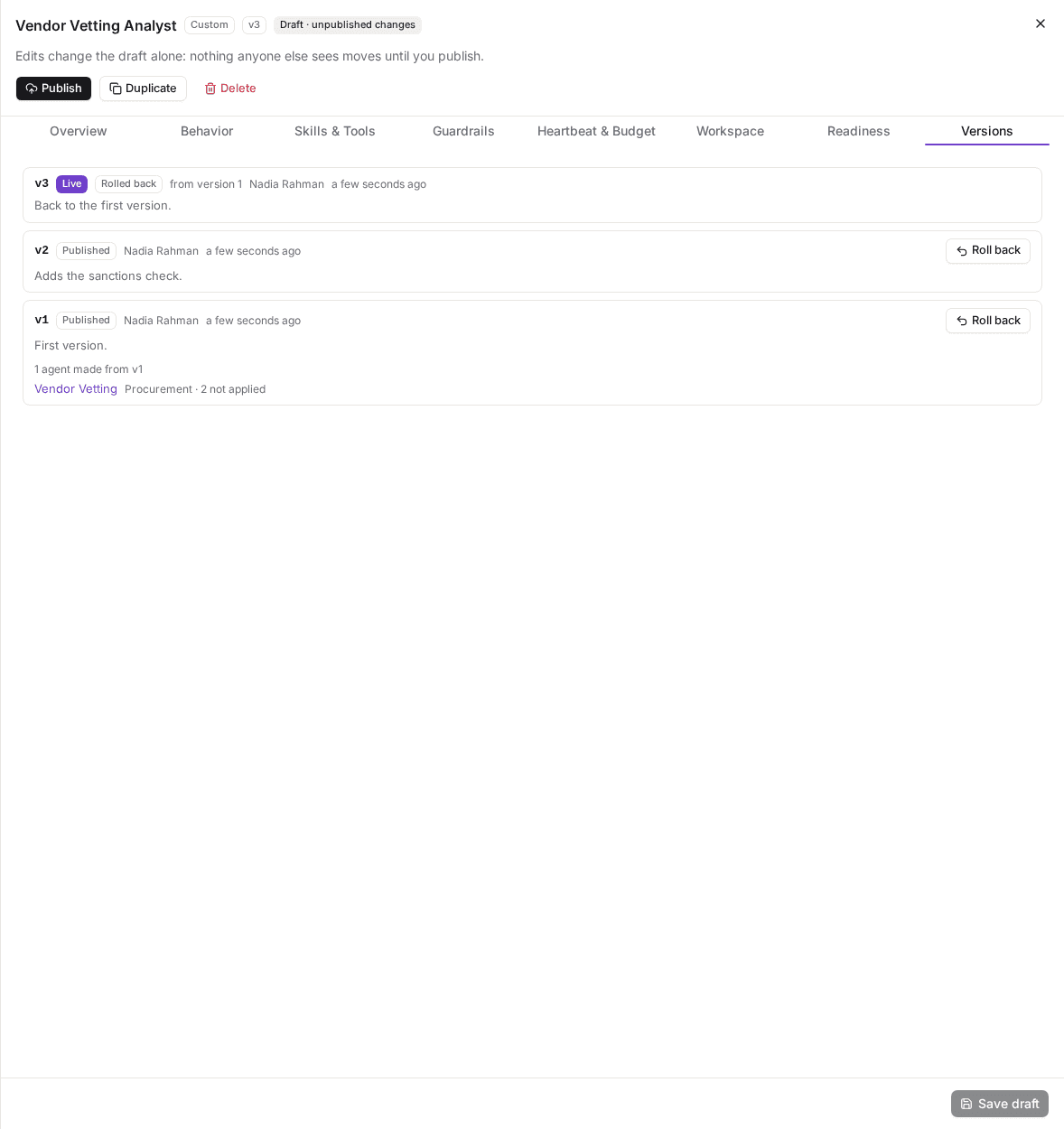
Rolling back to v1 published v3 with v1's content; v1 and v2 stay in the history, each with the agents made from it.
Agents already made from a template are copies: publishing a new version, or rolling one back, never changes them. Each one's pane says a newer version is available and what it changed, and lets its project apply what the agent was made without once it applies there. See An agent made from a template.
The agents made from a template
Each card in the library says how many agents were made from the template, in every project of every organization. The Versions tab lists, under each version, the agents made from it, with their project and how many of that version's items each has not applied yet. Choose an agent's name to open its pane on its project's Team tab.
Export and import
Templates move between tenants, or back into the same one, as a zip file.
Export
Tick the templates you want on their cards and choose Export selected. The download, askrai-agent-templates-<date>.zip, holds each template's published version, never its draft or its history, and the definitions of what it names that your tenant wrote for itself:
- each organization skill it uses, as its
SKILL.md, at the version the template was authored against; - each guardrail, policy and egress allowlist of your tenant it uses, with the guardrails and allowlist a policy names.
Each definition is in the file once, however many templates name it. A platform template, platform skill or platform control is named by reference only, since every tenant has its own. A template that has never been published cannot be exported, and the export names it.
What a bundle never carries
- No ids, no tenant id and no email address.
- No tool server, hosted tool source, model provider or credential. A tool server is named by its identifier and a model by its provider type and name: the tenant importing the file connects its own.
- No knowledge pack's content. A pack is named by its name, with its note, and applies in the tenant importing the file only as a pack of its own of that name.
- No version history, no agents, and nothing of a project.
Each file in a bundle carries a checksum, which catches a damaged file but not a forged one: bundles are not signed, so import only files you trust.
Import
Choose Import, pick the zip as the Bundle file, and choose the Organization to import into. Organization skills the bundle carries are created there, and new templates are granted to it.
Review the preview. Each template is imported as a New template, as a New version of the template of yours it was exported from, or you Skip it. Each definition the bundle carries is one you Create, map to one of yours with Use existing, or Skip. Each template shows what it would apply in the organization once imported, and each definition what it would arrive without here: an LLM judge's model you do not offer, or a tool server a policy's approval clause names that you have not connected.
Choose Import. The dialog says how many templates it imported, and lists any it refused with the reason, until you choose Done.
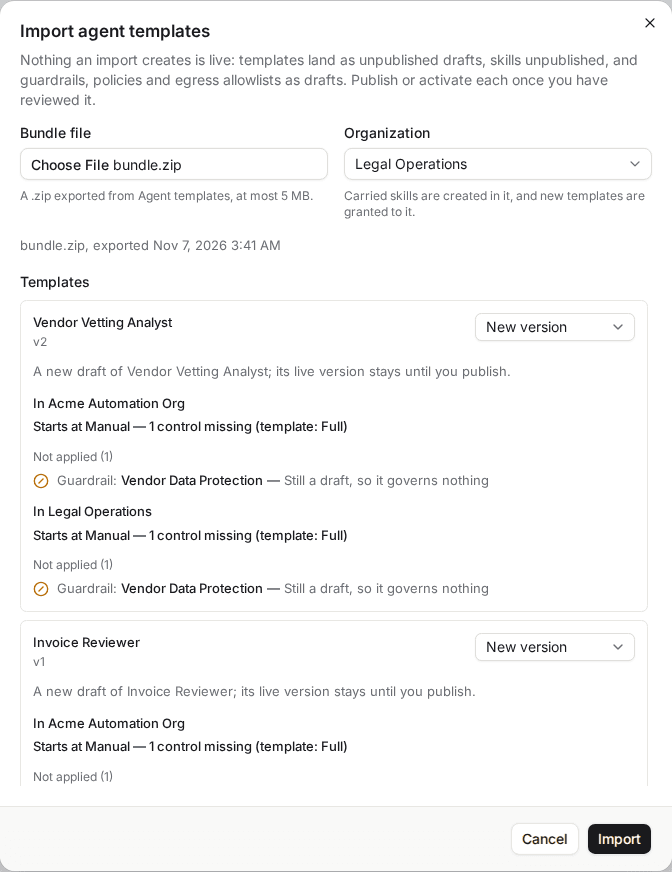
Each template's preview shows what would not apply once imported: here the guardrail the bundle carries arrives as a draft, so an agent made from either template starts at Manual.
A definition arrives only with a template that arrives: skip every template that names it, and it is not created.
Use existing is only ever your choice. A guardrail, policy or allowlist of yours with the same name is offered, never picked for you: a control with the same name may be weaker.
Nothing an import creates is live
- Templates arrive as unpublished drafts. A new template's first publish is pre-filled with the change note Imported from and the file's name.
- Skills arrive unpublished, and must pass the safety scan to be published like any other. One the scan flags can never be published as it stands.
- Guardrails, policies and egress allowlists arrive as drafts, which govern nothing. An LLM judge whose model your tenant does not offer arrives without one.
- Until each is published or activated, a template naming it shows it as not applied on Readiness, and an agent made from it starts at Manual approval.
- A new version replaces a template's draft only when that draft has no unpublished changes. A template never published counts as all unpublished changes. Otherwise the template is refused with the reason, and its live version never changes.
What an imported template names by name or identifier alone, such as a skill, a platform control, a tool server, a model or a knowledge pack, is listed on its tab as held by its name, identifier or catalog key. It stays in the template through every save until you remove it, or pick your own in its place. A guardrail, policy or egress allowlist you skipped in the import is listed as Not in this tenant instead. Picking your own guardrail or policy does not replace a skipped one: it stays until you remove it, and until then an agent made from the template starts at Manual approval. Picking your own allowlist does replace a skipped one.
A bundle is at most 5 MiB, 500 files and 50 templates.
Platform templates
Every tenant has five platform templates, built only from what every tenant has: Document Analyst, Data Analyst, Code Reviewer, Support Triage and Corporate Writer. Each names the platform skills it needs and the safety preamble skill, and is governed by Baseline safety. None names a tool or a model: whoever creates an agent from one picks the model. Each starts at Manual approval with its heartbeat off and access to the whole workspace. Every organization is offered them; a platform skill an organization has not adopted shows as not adopted, with Adopt for someone who manages skills.
Platform templates are read-only: open one to read it, or choose Duplicate & edit to make a copy of your own, which starts unpublished. Any template can be duplicated the same way, and a tenant template can be deleted.
Mailboxes
Let the agents you grant a mailbox connection list the folders of an Outlook archive uploaded to their project, search its messages by sender, recipient, subject, date and attachments, read a message one section at a time, and save its attachments into the workspace when you allow it
Policies
Bundle guardrails with the ceilings an agent runs under — autonomy, actions per beat, tool calls per beat and approval requirements — and attach the result to an agent, or to a group to guard its members' queries