Projects
Organize work into projects within an organization — create, browse, edit, and delete projects, and track each project's team and budget from a single workspace
Projects are the workspaces where your people and AI agents collaborate. Each project lives inside an organization and brings together a team, a budget, and an overview of how everyone connects. Open the Projects plane from the plane switcher in the top header.
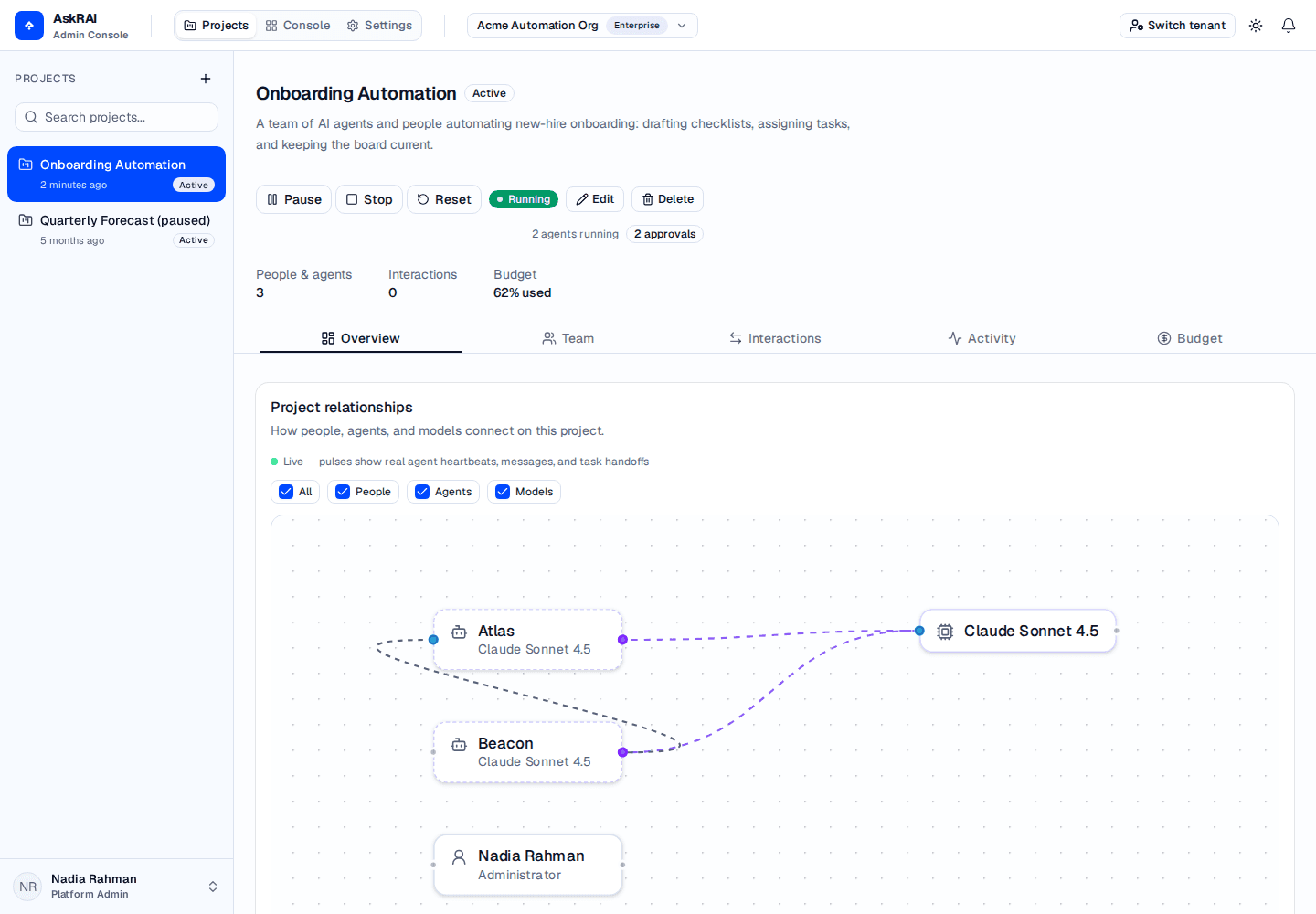
The Projects plane pairs a searchable project list with a per-project workspace — here the Customer Insights Platform project, scoped to the active Acme Corporation organization.
How projects fit in
A project always belongs to one organization, and the active organization scopes which projects you see. Switching organizations in the header switcher reloads the Projects plane for the newly selected organization.
- Organization → projects — you need at least one organization before you can create a project. If your tenant has no organizations yet, the Projects plane prompts you to Create an organization in Settings first.
- One workspace per project — selecting a project opens its workspace, where the Overview, Team, Interactions, Activity, and Budget tabs live.
- Team and budget — every project tracks the people and agents working on it (the Team tab) and an optional spending budget.
- A live team — the Interactions tab runs the project's agents and people as an autonomous workspace, with messages, a task board, and Start/Stop controls.
Projects are scoped to the active organization. If the project list looks wrong, confirm which organization is active in the header org switcher — see Organizations for how the active organization works.
Browsing projects
The Projects sidebar lists every project in the active organization. Use it to search, switch between projects, and start a new one.
- Search — type in the Search projects… box to filter the list by name or description.
- Two groups — the six most recently updated projects appear at the top, unlabelled; the rest are grouped under All projects.
- Status at a glance — every entry shows the project name and a status badge (Active, Paused, or Archived). The top group also shows when each project was last updated.
- Select a project — click any project to open its workspace on the right.
When the active organization has no projects yet, the workspace shows an empty state with a New project button to create your first one.
Creating a project
Click the + button next to the Projects heading in the sidebar (or the New project button in the empty state) to open the create dialog.
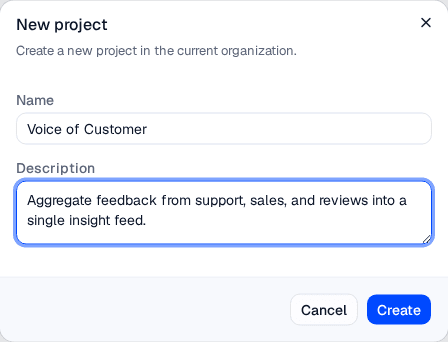
New projects are created in the current organization; you set the status and budget afterward by editing the project.
Open the create dialog. Click + in the Projects sidebar. The dialog notes that the project is created in the current organization.
Name the project. Enter a Name — this is required and identifies the project throughout the workspace.
Add a description (optional). Use the Description field for a short summary of what the project is for.
Create. Click Create. The new project is added, selected automatically, and opens to its Overview tab.
New projects start as Active, with no budget and an Idle check-in of 60 minutes. To set a status, allocate a budget or change the idle check-in, edit the project after creating it.
Project fields
| Field | Description | Required |
|---|---|---|
| Name | The project's display name, shown in the sidebar and workspace header | Yes |
| Description | A short summary of the project's purpose | No |
| Status | Active, Paused, or Archived — set when editing (new projects default to Active) | Set on edit |
| Budget total (USD) | An optional ceiling on what the project may spend in total — set when editing | Set on edit |
| Idle check-in (minutes) | The longest an agent with nothing to do waits between beats — set when editing. Defaults to 60 | Set on edit |
The project workspace
Selecting a project opens its workspace. The header shows the project name and status, its description, the Start / Pause / Stop run controls, and Edit and Delete actions. A stats strip summarizes the People & agents count, Interactions, and Budget usage. Below, five tabs organize the work.
Overview tab
The Overview tab summarizes how the project is staffed and connected.
- Project relationships — a live interaction graph of how people, agents, and models connect.
- People, Active agents, and Open tasks — headline counts for the project's team and its task board.
- Recent activity — a feed of what the team's agents and people are doing, drawn from the Interactions workspace.
- Resources — marked Coming soon; this surface will populate in a future release.
The interaction graph
The Project relationships card on the Overview tab draws the project as a graph: who is on the team, who reports to whom, and which model each agent runs on. While the team is running, it also animates the work as it happens.
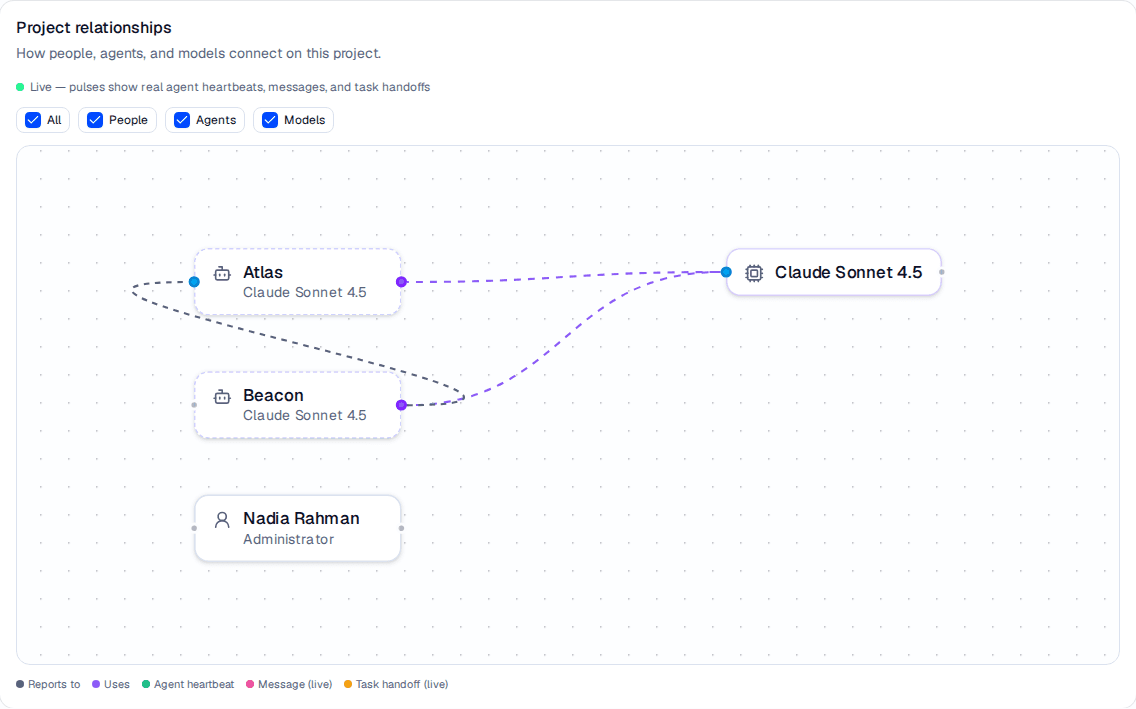
The graph places the team on the left and their models on the right. Beacon reports to Atlas, and both run on the same model — so it collapses into a single shared node. The green outline is a beat in progress.
What the graph shows
| Element | Meaning |
|---|---|
| Person node | Someone on the project team, labelled with their name and job title |
| Agent node | An AI agent, labelled with its name and the model that powers it |
| Model node | A model an agent runs on. Agents sharing a model share one node, so you can see at a glance which model the project leans on |
| Reports to edge | The reporting line between two members, mirroring the org chart |
| Uses edge | Connects an agent to its model. These edges animate while the team is running |
Watching the team work
Start the team and the graph goes live — the status line reads Live — pulses show real agent heartbeats, messages, and task handoffs. Three kinds of pulse then light up the graph as the events actually happen:
| Pulse | What just happened |
|---|---|
| Agent heartbeat | The agent glows green — it is taking a beat right now |
| Message (live) | A line flashes from the sender to the recipient. A broadcast to everyone glows the sender instead |
| Task handoff (live) | A line flashes from the task's creator to its new assignee, labelled with the task's title. It is drawn from the creator even when someone else did the reassigning |
Each pulse is an event the team produced. Each agent beats on its own configured cadence — five minutes by default, and as often as every 30 seconds — so a healthy graph is calm rather than busy. If you see nothing at all, check that the team is Running and that your agents have Automatic heartbeat enabled.
Reading the graph
- Focus a member. Click a person or agent to focus it. Everything it connects to stays sharp, everything else dims, and a hint reads Showing relationships for …. Click the canvas to clear it.
- Filter. Untick People, Agents, or Models to hide that kind of node, or use All to toggle everything at once.
- Pan and zoom. Drag to pan, scroll or pinch to zoom. Nodes cannot be dragged.
If the project has no team yet, the card reads No team yet — add people and agents on the Team tab to populate it.
Budget tab
The Budget tab tracks spending against the project's budget total.
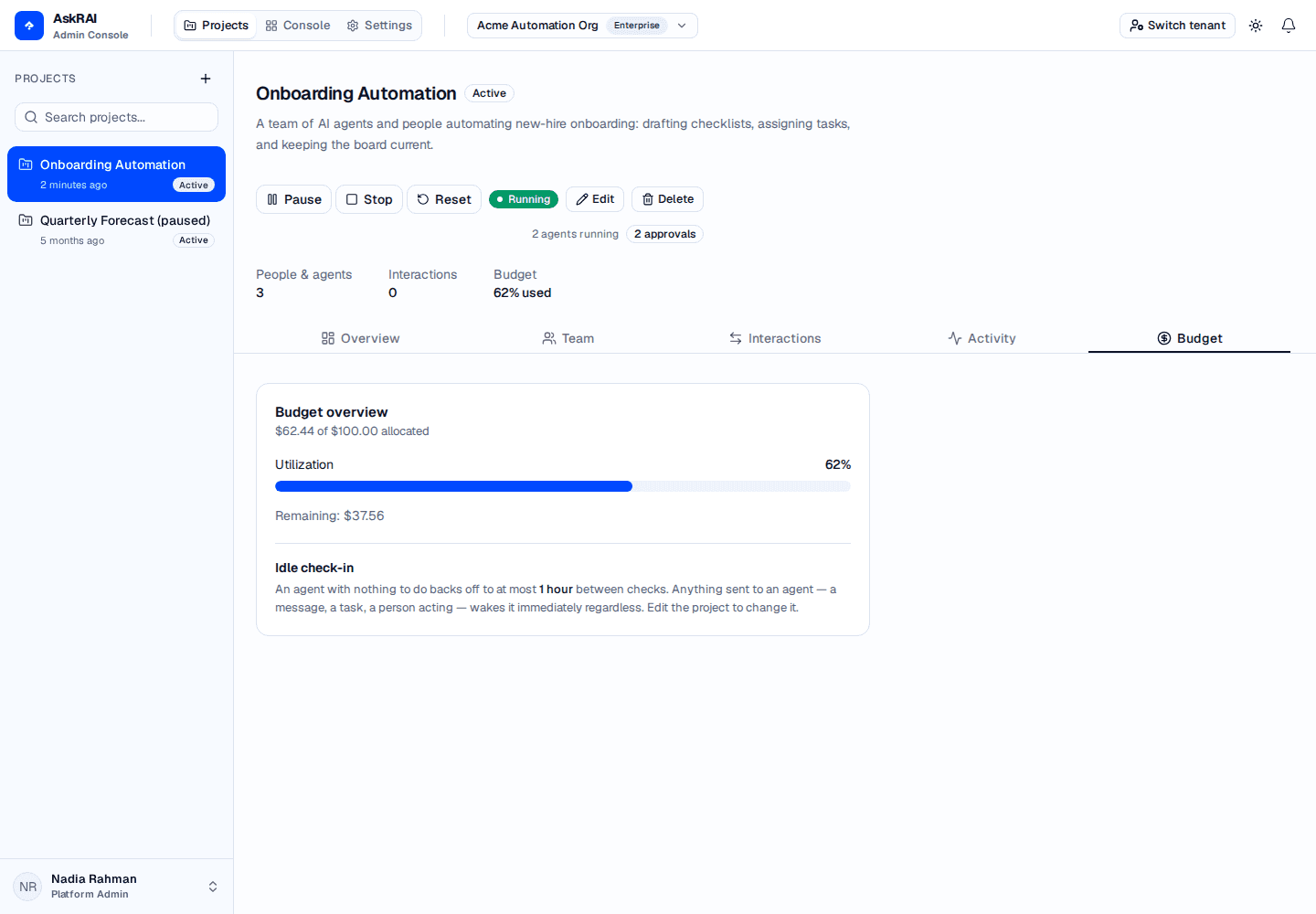
The Budget tab does not update live the way the Overview and Interactions tabs do: it shows what had been spent when the page loaded, so reload it to see a running team's latest figure.
When a budget is allocated, the Budget overview shows the amount used against the total (for example $62.43 of $100.00 allocated), a Utilization bar with the percentage consumed, and a closing line that reads Remaining: $37.57, At budget limit, or Over budget by $20.00. If no budget is set, the tab reports that spend is uncapped, tells you how much has accrued so far, and prompts you to edit the project to allocate one.
Spend is reported to the cent, and small amounts are never rounded away: a project that has spent a fraction of its budget total reads <1% used rather than 0%, one that is nearly exhausted reads >99% used rather than 100%, and an amount under half a cent reads <$0.01 rather than $0.00. The project header carries the same figure as a Budget stat.
The budget total is the only budget value you set directly. Usage accrues automatically as the project's agents beat — each beat is priced from its model's token rates, which you can set per model on Model Providers. The cap is measured against the project's lifetime spend; it does not reset at the start of a month.
When a project exhausts its budget, AskRAI hard-stops the whole team: every agent stops, the run state becomes Stopped, and the project's status is set to Paused. A Budget exhausted badge appears in the header and Start is disabled. Recovery therefore takes two steps — raise the Budget total (USD) and set the status back to Active — because raising the budget alone leaves the project paused.
Idle check-in
Beneath the budget, the Budget tab reports the project's Idle check-in — the longest an agent with nothing to do waits between beats.

The readout states the ceiling in plain units, and says outright that a wake overrides it.
This is the other half of what a team costs. The budget total bounds the total a project may spend; Idle check-in bounds the rate a team that has finished its work keeps spending, because a beat is a model call whether or not there is anything to do. An agent whose beats change nothing doubles its own interval toward this ceiling; anything sent to it — a message, a task, a person acting — wakes it immediately regardless. See Agent Heartbeat for the full rule.
Change it by editing the project.
Editing a project
Click Edit in the project header to open the edit dialog. Editing is where you set the project's status and budget.
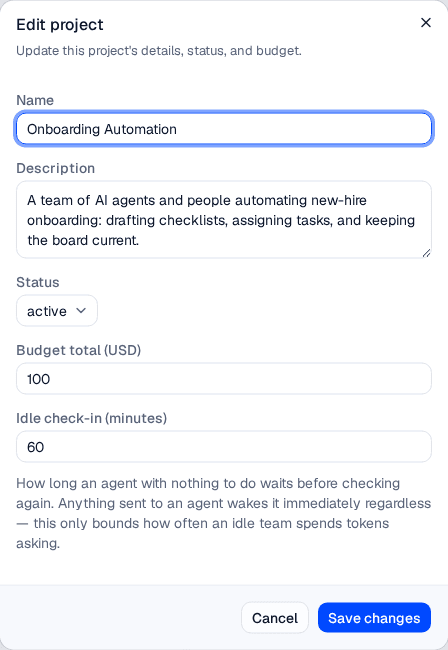
The edit dialog adds Status, Budget total (USD) and Idle check-in (minutes) on top of the name and description. The Status selector shows the stored value — active, paused or archived — while the open list shows the names below.
The edit dialog exposes these fields:
| Field | Description |
|---|---|
| Name | The project's display name (required) |
| Description | A short summary of the project's purpose |
| Status | Active, Paused, or Archived |
| Budget total (USD) | The ceiling on total project spend, in US dollars. Must be greater than zero; cents are accepted. Leave it blank for no budget |
| Idle check-in (minutes) | The ceiling an idle agent's interval backs off to. A whole number of minutes from 1 to 525,600 (one year) |
Click Save changes to apply. If you enter zero or a negative number, AskRAI reports Budget total must be a positive number — correct the value and save again. To remove a cap entirely, clear the field rather than setting it to zero.
Idle check-in is validated the same way: a value outside 1 to 525,600, or one that is not a whole number, is refused with Idle check-in must be a whole number of minutes between 1 and 525600.
Project status
| Status | Meaning |
|---|---|
| Active | The project is in normal use |
| Paused | Work is on hold. Start is refused while a project is Paused, whatever its budget — set it back to Active first |
| Archived | The project is retired but retained for reference |
Deleting a project
Click Delete in the project header to open a confirmation dialog. Deleting a project is permanent, so AskRAI asks you to confirm.
Deleting a project permanently removes it and cannot be undone. The confirmation dialog names the project and warns that it will be permanently deleted — make sure you have selected the right project before confirming.
Troubleshooting
| Symptom | Likely cause | Resolution |
|---|---|---|
| No organizations yet appears instead of projects | The tenant has no organizations, which projects require | Create an organization under Settings → Organizations, then return to Projects |
| The project list is empty or unexpected | A different organization is active | Confirm the active organization in the header org switcher — the list is scoped to it |
| Budget total must be a positive number | Zero or a negative value was entered in the edit dialog | Enter a number greater than zero, or clear the field for no budget |
| A Budget exhausted badge appears and Start is disabled | The project spent its budget total and hard-stopped, which also set its status to Paused | Raise the Budget total (USD) and set the status back to Active — both are needed |
| Start is enabled but fails with Project is not active | The project's status is Paused or Archived. Start requires Active, and the button is not disabled for a hand-paused project | Set the status back to Active when editing the project |
| Start is disabled and names a model provider | No model provider is enabled for the tenant, or the model list is still loading | Enable one under Model Providers — a project with budget to spare still cannot start without a model |
| The Budget tab says spend is uncapped | No budget total has been allocated | Edit the project and set a Budget total (USD) |
| The graph reads No team yet | The project has no people or agents | Add members on the Team tab |
| An agent beats far less often than its interval says | The project's team has been idle, so the agent has backed off toward Idle check-in | Send the agent something, or lower Idle check-in when editing the project |
| Idle check-in must be a whole number of minutes between 1 and 525600 | A fractional or out-of-range value in the edit dialog | Enter a whole number of minutes within the range |
Related pages
- Team — add people and AI agents to a project and map how they report to one another
- Interactions — run the project's team as a live, autonomous workspace with messages, tasks, and run controls
- Organizations — the organizations that contain your projects and scope the Projects plane
- Users, Roles & Groups — manage the directory of people you can assign to projects