Model Providers
Connect the AI model providers AskRAI runs on — every model routing can choose from is one you register here
The Model Providers section is where you connect the AI providers AskRAI runs on. Every model the platform can use is one you register here — AskRAI ships none of its own — so this page is a prerequisite for answering queries at all, not an optional extension. Once connected, these models appear in Model Routing configuration, where they can be assigned to routing rules. You can also check any connected model on its own — directly from its provider card — using Test Model.
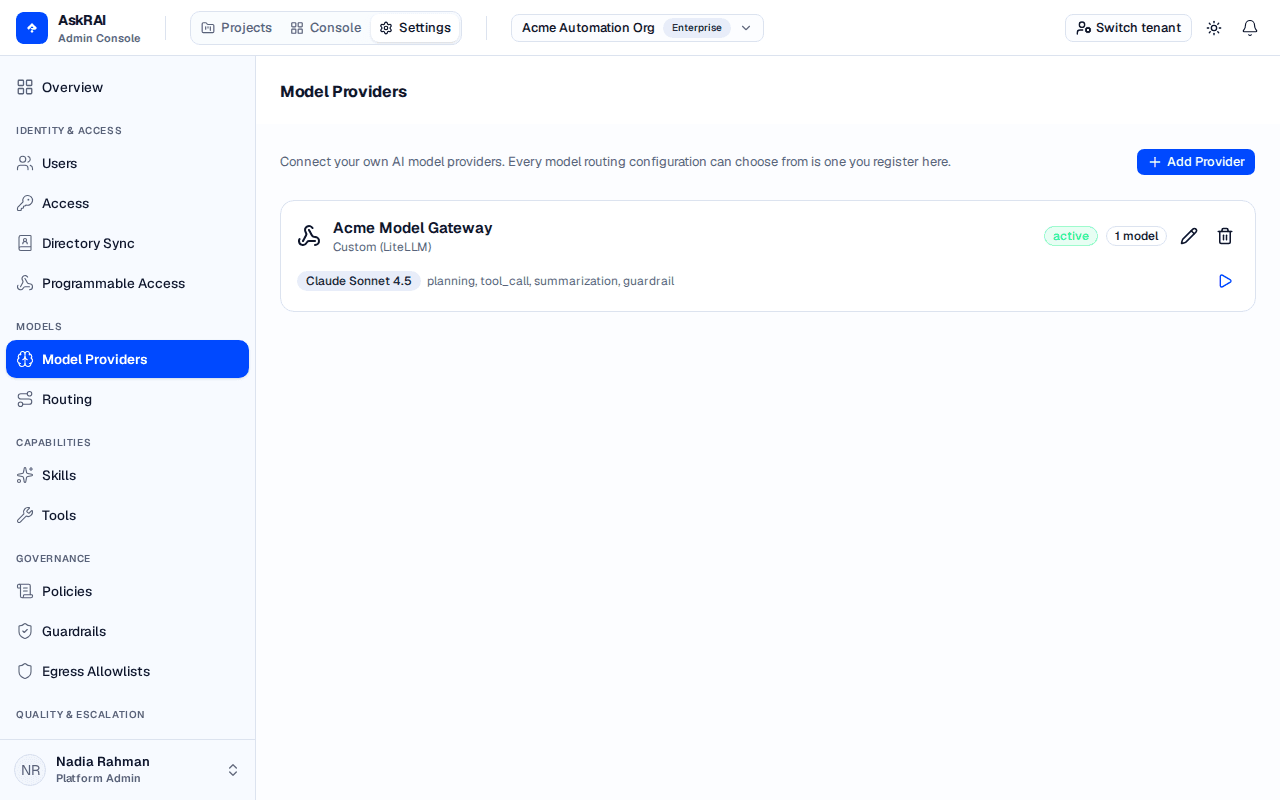
Each connected provider is listed with its type, status, and the models you enabled on it — with the stages each model may serve and a button to test it.
Until one provider is active with at least one enabled model, nothing that needs a model works. Queries cannot be answered, and the Sandbox replaces its chat with a Configure a model provider empty state. Set this up first.
Model Providers is a Platform Admin surface. A Member does not see Model Providers in the Settings sidebar — they cannot open the Settings plane at all — and a Member who follows a direct link to it is sent back to the Projects workspace. Roles are assigned under Settings → Access.
Supported provider types
| Provider Type | Credential Fields | Configuration Fields |
|---|---|---|
| OpenAI | API Key | — |
| Anthropic | API Key | — |
| Azure OpenAI | API Key | Base URL, API Version |
| AWS Bedrock | AWS Access Key ID, AWS Secret Access Key | Region |
| GCP Vertex AI | Service Account JSON | Project, Region |
| Custom (LiteLLM) | API Key | Base URL |
Adding a provider
Open Model Providers
Open the Settings plane from the top navigation bar, then select Model Providers in the Settings sidebar.
Click Add Provider
Click Add Provider in the top-right corner. The Add Model Provider dialog opens.
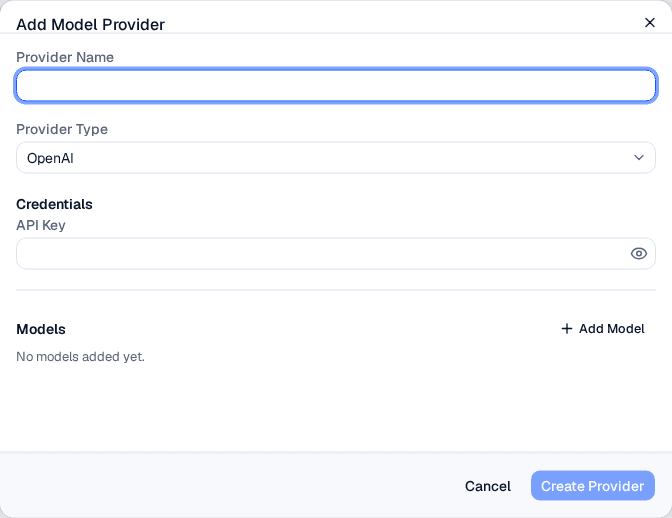
The dialog adapts its credential and configuration fields based on the selected provider type.
Enter Provider Details
Fill in the required fields:
- Provider Name — a display label for this provider (for example, "Production OpenAI" or "Internal Azure GPT-4")
- Provider Type — select from the dropdown (OpenAI, Anthropic, Azure OpenAI, AWS Bedrock, GCP Vertex AI, or Custom)
- Credentials — enter the required credentials for the selected provider type. Credentials are encrypted at rest and are never included in the provider list or detail responses (those return only which fields have been set, never the values).
If your provider type requires additional configuration (such as a Base URL for Azure OpenAI or a Region for AWS Bedrock), those fields appear automatically.
Add Models
Click Add Model in the Models section. For each model, enter:
- Model ID — the provider's model identifier (for example,
gpt-4-turboorclaude-3-5-sonnet-20241022) - Display Name — a human-readable label shown in routing configuration
- Supported Stages — select which pipeline stages this model can handle: tool call, summarization, or guardrail. A planning checkbox is also offered and is currently inert: no stage of the pipeline requests it and no model dropdown filters on it, so a model marked only planning cannot be selected anywhere
- Input $ / 1K tokens and Output $ / 1K tokens — what this model costs you, in US dollars per 1,000 tokens. Both are optional; see Token pricing
Click Add to save the model. You can add multiple models to a single provider.
Create the Provider
Click Create Provider to save. The provider appears as a card in the Model Providers section with its status and model count.
Provider card
Each connected provider displays as a card showing:
| Element | Description |
|---|---|
| Provider icon and name | Visual identifier with the provider type label below |
| Status chip | Active (green), Inactive (grey), or Error (red) |
| Model count | Number of enabled models on this provider |
| Edit button | Opens the edit dialog to update settings or credentials |
| Delete button | Removes the provider and its stored credentials |
| Model list | Each enabled model with its display name, supported stages, and a play button to test |
Editing a provider
Click the edit icon on a provider card to open the edit dialog. You can update:
- Provider Name — change the display label
- Status — toggle between Active and Inactive using the switch
- Credentials — leave blank to keep current values, or enter new credentials to replace them. Click the eye icon to reveal a stored credential value on demand.
- Configuration — update Base URL, API Version, Region, or Project as applicable
- Models — add new models or remove existing ones
The provider type cannot be changed after creation. To switch provider types, delete the existing provider and create a new one.
Testing a model
Click the play icon next to any model in a provider card to open the test drawer. Enter a prompt and click Send Test to verify the model responds correctly. The result shows:
- Success — the model's response text and latency in milliseconds
- Failed — the error message from the provider
Credentials are encrypted at rest and are never included in the provider list or detail responses — those carry only which fields have been set, never the values. When editing a provider, existing credentials appear as masked dots; a Model Providers administrator can reveal a stored value on demand by clicking the eye icon, which fetches it through a dedicated, permission-gated endpoint.
Token pricing
When you bring your own model, AskRAI does not know what your contract with the provider costs. Input $ / 1K tokens and Output $ / 1K tokens are where you tell it — and they are what makes project budgets accurate.
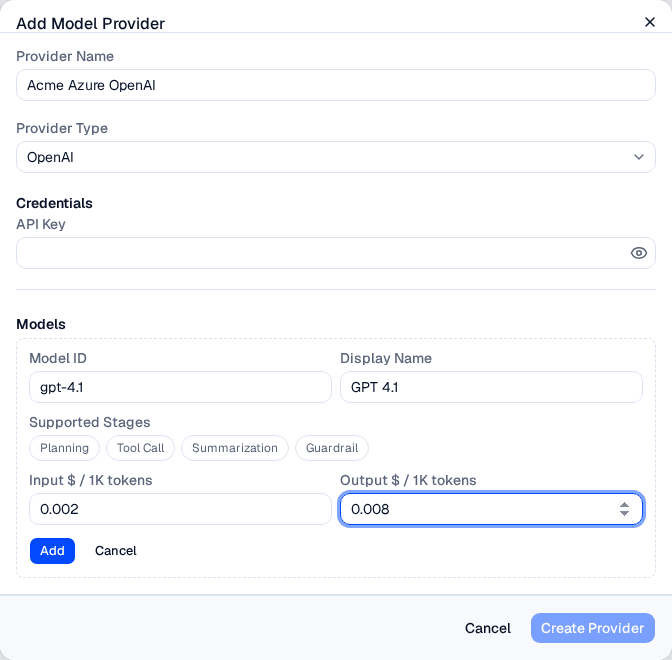
Token prices sit alongside the model's identifier in the Add Model form. Both are optional — leave them blank and the model bills at the platform's fallback rate.
Both fields take US dollars per 1,000 tokens — so a model billed at $2.00 per million input tokens is entered as 0.002. They are available on every provider type.
| Field | Description | Required |
|---|---|---|
| Input $ / 1K tokens | What you pay for 1,000 prompt tokens | No — leave blank and beats are costed at the flat fallback rate |
| Output $ / 1K tokens | What you pay for 1,000 completion tokens | No — leave blank and beats are costed at the flat fallback rate |
- Leave a price blank and that side of the model bills at the platform's fallback rate. The two sides fall back independently, so you can price only the one that matters.
- Zero is a valid price. Enter
0for a model that genuinely costs you nothing — a self-hosted deployment, for example. A negative number is rejected with Token prices must be zero or a positive number. - Once a model is saved, its row summarizes the rates as · in $0.002 / out $0.008 per 1K, and shows platform rate for whichever side you left blank.
Prices are used for budget accounting, and only for that — they do not influence routing or which model handles a query. Getting them wrong does not break anything, but it does make every project budget wrong in the same direction: a model priced too low will overspend its allocation before the budget stops it.
Pricing is read fresh on every agent beat, so correcting a rate takes effect immediately — there is no cache to wait out and no need to restart a running team. A saved model's price is read-only on the form: correcting one means removing the model and adding it again with the new rate.
Related pages
- Model Routing — configure which models handle different query types using your connected providers
- Confidence Thresholds — set the score boundaries that band an answer and drive escalation. They do not feed routing, whose conditions are the request-context fields listed on that page
- Sandbox — test AI responses with different model configurations