Organizations
Group your projects under tenant-scoped organizations, switch the active organization to scope the Projects workspace, and manage each organization's name, slug, and plan tier
Organizations are tenant-scoped containers that group your projects. The active organization scopes the Projects workspace, so switching organizations switches which projects you see and work in. Manage them under Settings → Organizations, in the Platform section of the Settings sidebar.
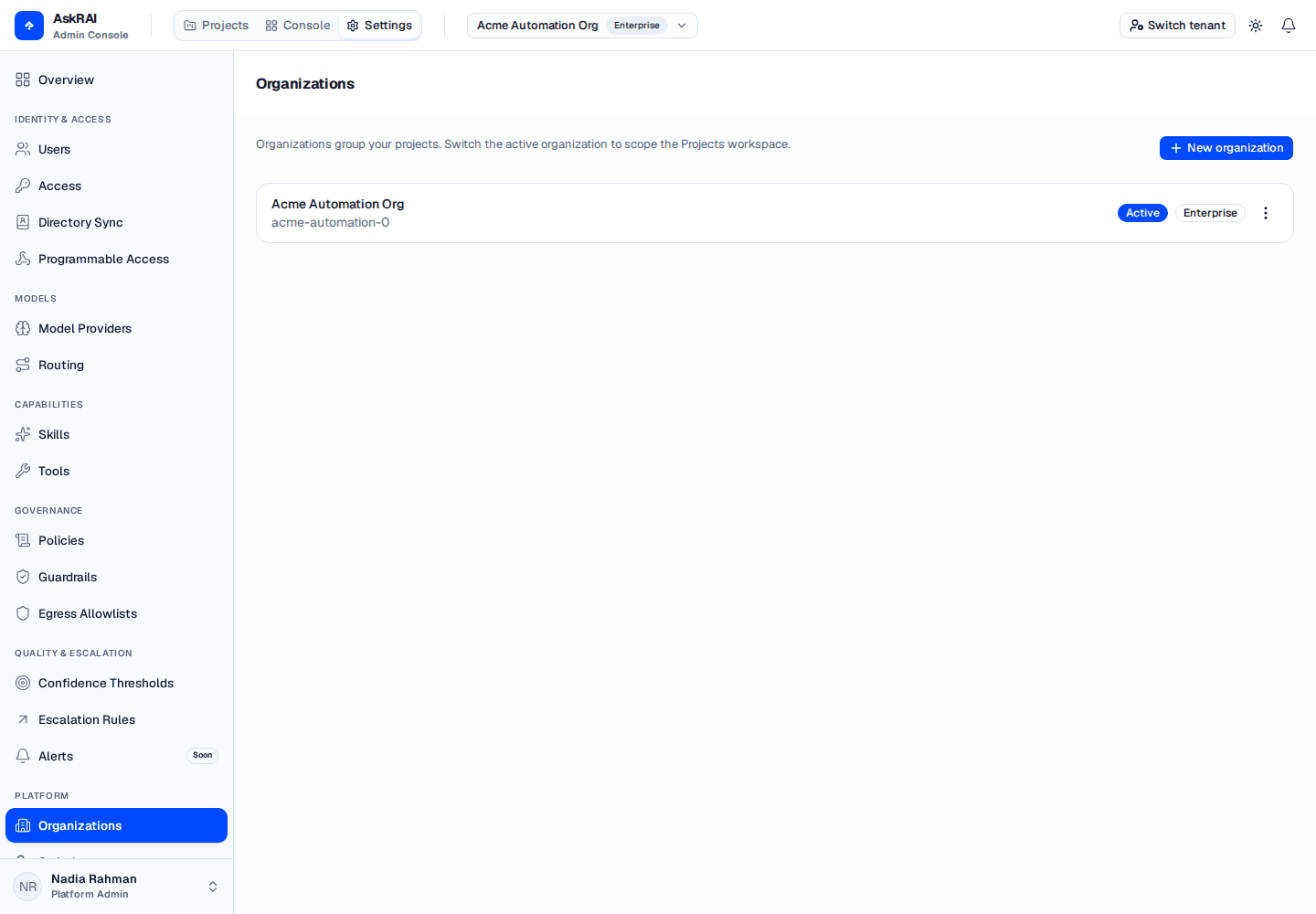
Each row shows an organization's name, slug, and plan, with the active organization marked. The header switcher (top) reflects the same active organization.
Managing organizations — creating, editing, and deleting them — requires the Platform Admin role. The Settings area is admin-only, so a member who opens Settings → Organizations is redirected to the Projects workspace. Every user can still switch the active organization from the header org switcher, which stays available regardless of role — though its New organization shortcut leads to the admin-only Organizations page, so a member who follows it is returned to Projects. Roles are assigned under Settings → Access.
How organizations fit in
A tenant can hold many organizations, and each organization groups its own projects. Exactly one organization is active at a time. It scopes the Projects plane and also the Skills library and tool-server grants, so switching organization changes what Settings shows you as well as which projects you see. The choice is remembered across sessions.
- Tenant → organizations → projects — organizations sit between your tenant and your projects. Creating projects requires an organization to put them in.
- Active organization — the organization currently in context. It carries an Active badge in the list and its name appears in the header org switcher.
- Identity — every organization has a name, a slug that is unique within the tenant, and a plan tier shown as a badge.
Organizations live entirely within your tenant — they are an internal way to structure projects, not a billing boundary or a separate login. Switching the active organization never changes your tenant or your sign-in.
Switching the active organization
The active organization is shown in the org switcher in the top header — the button labelled with the organization's name and plan. Open it to move between organizations without leaving the page.
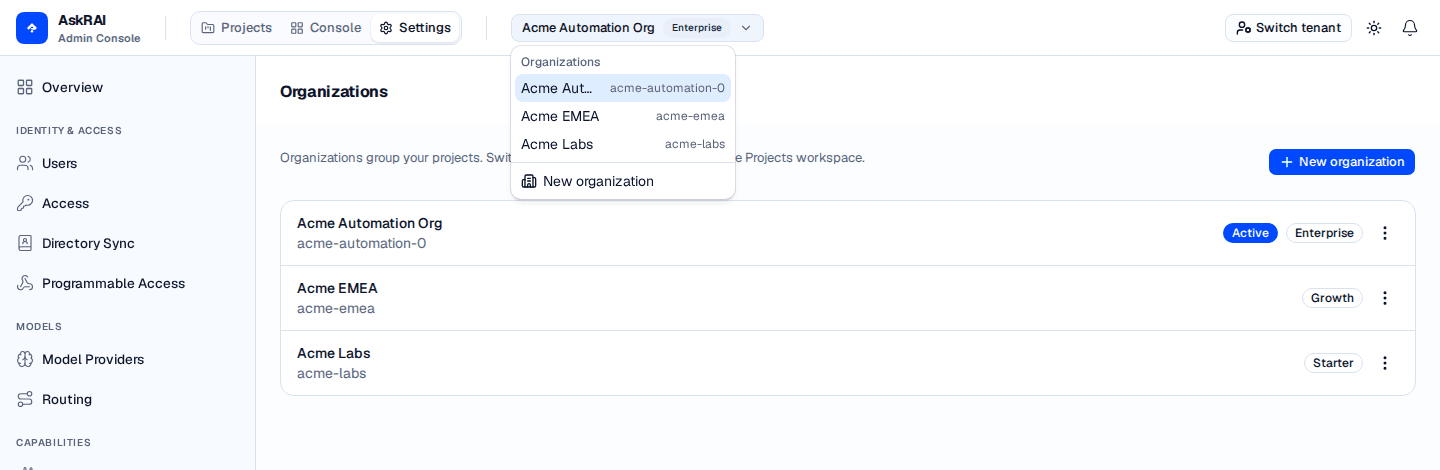
The org switcher lists every organization in the tenant and highlights the active one; the New organization item jumps to the Organizations page with the create dialog open.
You can switch the active organization two ways:
- From the header switcher — open it and choose an organization.
- From the Organizations page — click any organization's name to make it active.
Switching the active organization reloads the Projects workspace, and the Skills library with it — both are org-scoped, so Settings changes under you as well as the Projects plane. The switcher appears only once the tenant has at least one organization.
Creating an organization
Click New organization — either the button on the Organizations page or the shortcut at the bottom of the header org switcher — to open the create dialog.
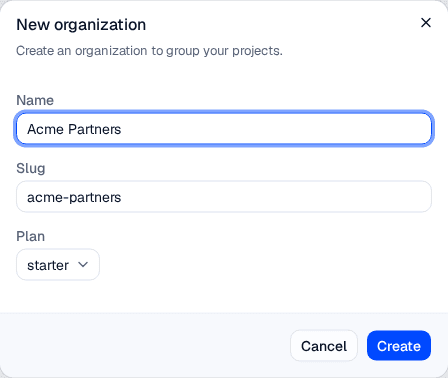
The slug is derived from the name as you type; you can override it before creating.
Open the create dialog. Click New organization. The dialog explains that an organization groups your projects.
Enter a name. Type the organization's display Name (for example, Acme Partners). As you type, AskRAI derives a URL-safe Slug automatically.
Adjust the slug (optional). Edit the Slug if you want a specific value. It may contain only lowercase letters, numbers, dashes, and underscores. Leave it blank to let AskRAI generate one from the name and guarantee it is unique.
Choose a plan. Pick the Plan tier — Starter, Growth, or Enterprise. New organizations default to Starter. The closed selector shows the stored value (starter, growth, enterprise); the open list shows the names.
Create. Click Create. The new organization is added, becomes the active organization, and a confirmation appears. The header switcher updates to show it.
Organization fields
| Field | Description | Required |
|---|---|---|
| Name | The organization's display name, shown in the list and the header switcher | Yes |
| Slug | A URL-safe identifier, unique within the tenant. Lowercase letters, numbers, dashes, and underscores only. Auto-derived from the name; leave blank on create to have AskRAI generate and de-duplicate it | No (auto-generated) |
| Plan | The plan tier — Starter, Growth, or Enterprise — displayed as a badge | Yes (defaults to Starter) |
Plan tiers
The plan tags an organization with a tier and is shown as a badge in the list and the switcher. Nothing else in AskRAI reads it — it changes no limit and unlocks no feature. Tiers are listed in upgrade order.
| Plan | Badge |
|---|---|
| Starter | Starter |
| Growth | Growth |
| Enterprise | Enterprise |
Slugs must be unique within your tenant. If you type a slug that's already taken, AskRAI reports That slug is already in use — pick another. When you leave the slug blank, AskRAI derives one from the name and appends a numeric suffix (-2, -3, …) if needed to keep it unique.
Editing and deleting
Each organization row has an actions menu (the ⋮ button) with Edit and Delete.
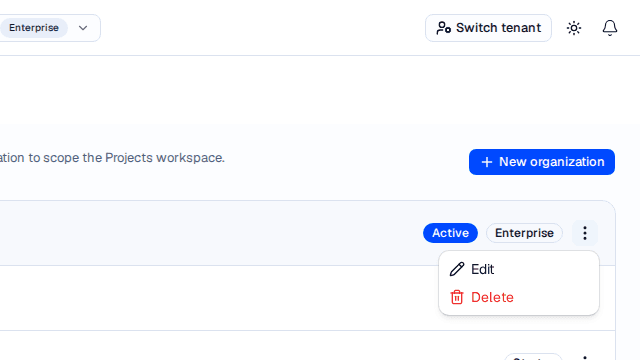
Delete asks for confirmation and is refused while the organization still owns projects — move or delete those first.
Edit an organization
Choose Edit to open the edit dialog, where you can update the Name, Slug, and Plan. The slug is required when editing and must stay unique within the tenant. Click Save changes to apply.
Delete an organization
Choose Delete to open a confirmation dialog titled Delete organization?. It names the organization and warns that the deletion is permanent and cannot be undone; click Delete to confirm.
You can't delete an organization that still has projects. AskRAI blocks the deletion with This organization has projects and cannot be deleted — move or remove its projects first, then delete the organization.
Troubleshooting
| Symptom | Likely cause | Resolution |
|---|---|---|
| The org switcher isn't in the header | The tenant has no organizations yet | Create your first organization; the switcher appears once one exists |
| Opening Settings → Organizations redirects to Projects | You're signed in as a member; managing organizations is Platform-Admin-only | Ask a Platform Admin to make the change, or to grant you the Platform Admin role under Settings → Access |
| That slug is already in use | Another organization in the tenant already uses that slug | Choose a different slug, or leave it blank to have AskRAI generate a unique one |
| This organization has projects and cannot be deleted | The organization still contains projects | Remove or reassign its projects, then delete the organization |
| Projects look wrong after switching | A different organization is active | Confirm the active organization in the header switcher — the Projects workspace is scoped to it |
Related pages
- Users, Roles & Groups — manage who can access the platform alongside how work is organized
- Directory Sync — provision users and groups from your identity provider
- Settings — the rest of the platform configuration