Skills
Author, validate, publish and version the SKILL.md instruction packs an agent can be pinned to, and adopt the ones the platform ships
A skill is a SKILL.md file — instructions an agent loads when it needs them, rather than guidance you paste into every system prompt. Settings → Skills is where an organization's skills live: the platform catalog you can adopt from, the custom skills you write, and the version history an agent is pinned to. Open it with the Settings control in the top navigation bar, then choose Skills under Capabilities.
Authoring skills is reserved for Platform Admin, and so is the Skills card on an agent's Skills & Tools tab — a Member sees a note there instead of a picker. The Tools card beside it is open to project members, who choose which connected servers each agent may call.
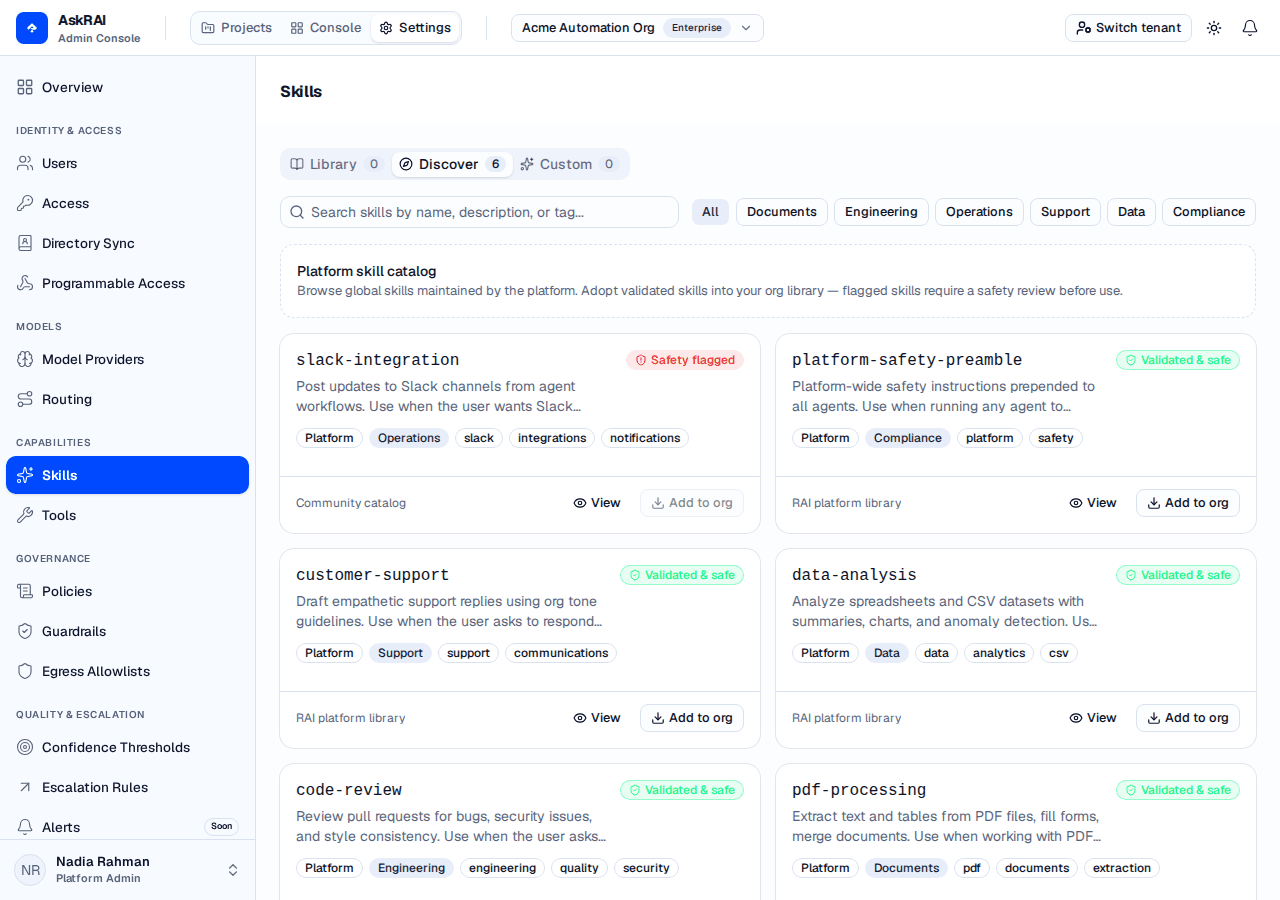
Each card carries the skill's validation verdict, its scope, its category and its tags — everything the library is browsed by.
Skills belong to an organization, not to the tenant
Unlike the governance areas, which are tenant-wide, this page is scoped to an organization. The library you are looking at is the library of the organization named in the header switcher, and adopting, authoring and pinning all happen inside it. Switch organizations in the header and the grid, the badge counts and the version banner all re-read for the new one.
That matters when you have more than one organization: the same platform skill can be adopted by several, and removing it from one leaves the others untouched.
The three tabs
| Tab | What it lists |
|---|---|
| Library | Everything this organization may attach — the platform skills it has adopted plus the skills it wrote itself. |
| Discover | Platform skills this organization has not adopted yet. A skill leaves this tab the moment you adopt it. |
| Custom | Only the skills this organization authored. |
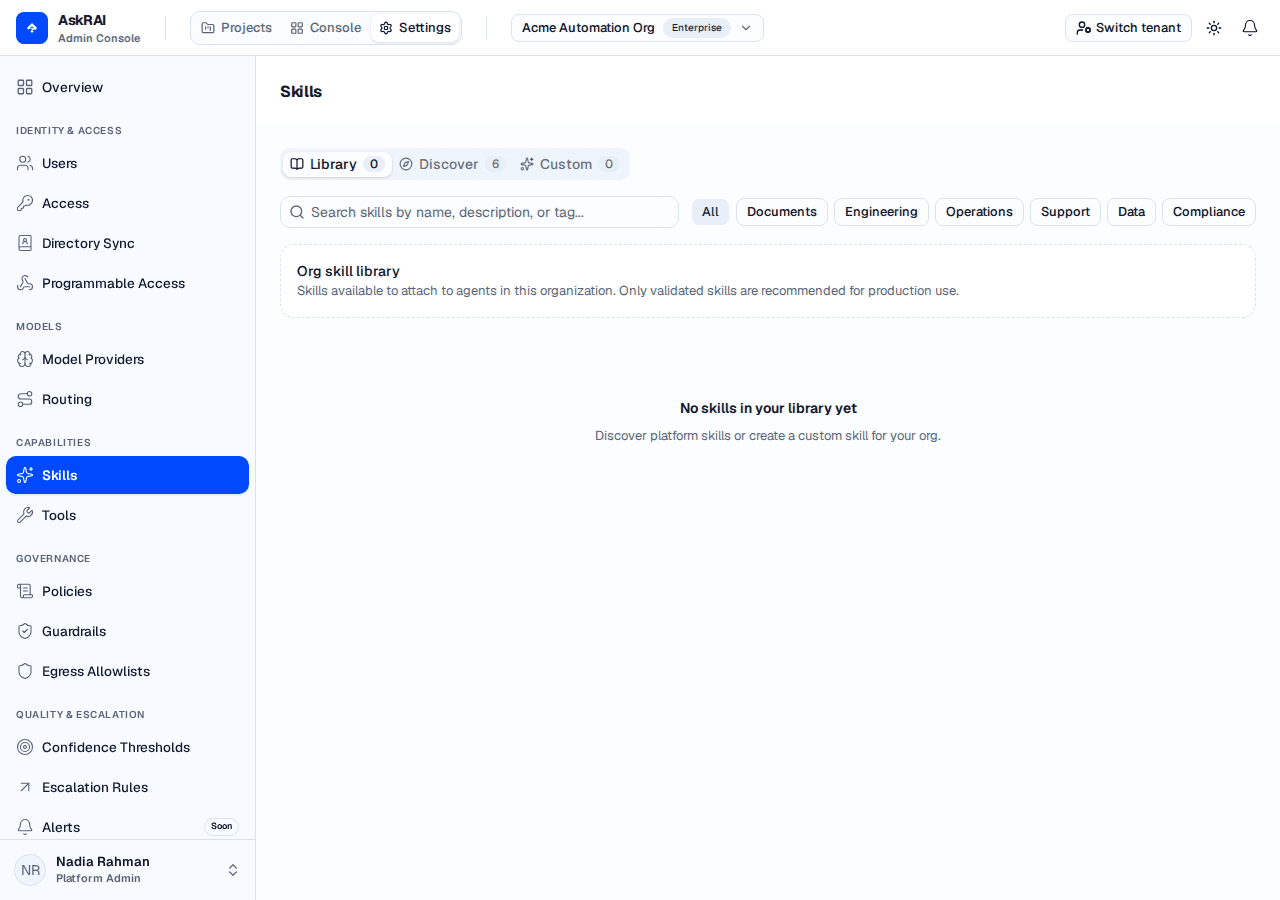
Library holds both kinds, and the control on each card says which: a skill this organization wrote is Deleted, an adopted platform skill is Removed from org.
The badge on each tab counts the whole tab, not the filtered view, so the grid under a badge can legitimately show fewer cards than the number claims once you type in the search box or pick a category.
Search matches name, description and tags. The category chips — Documents, Engineering, Operations, Support, Data and Compliance — are the product's closed list; a skill always has exactly one.
The platform catalog
The platform ships six skills into every tenant — five attributed to the RAI platform library, and one, the deliberately unsafe slack-integration, to a Community catalog. All six are scanned by Platform trust & safety, which is the attribution on the safety panel rather than on the card. They are read-only: you can open one and read it, but the name, the body, the category and the tags are all disabled, and there is no version to roll back.
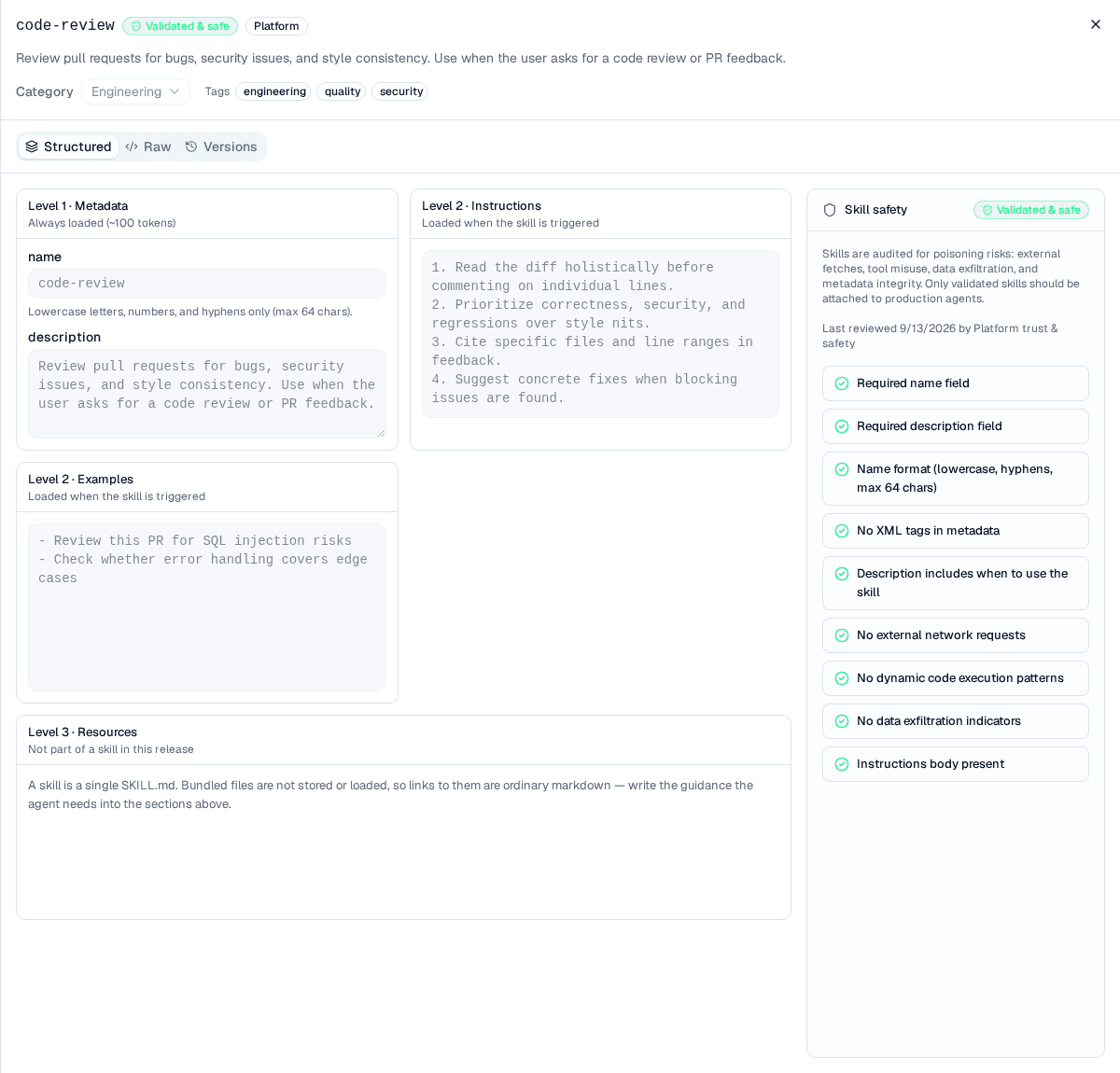
A platform skill opens with View rather than Edit — every field is disabled and the safety rail shows the platform's own scan.
One catalog entry, slack-integration, is deliberately unsafe: its body fetches an external URL, the validator flags it, and adoption is refused. It is there to demonstrate that the safety gate works. Its Add to org button is disabled, and so is the button on any skill that has never been published.
Adopt a platform skill
Open the Discover tab.
Find the skill and choose Add to org.
The skill moves into Library, and the tab counts move with it.
Adoption publishes nothing and moves no agent. It widens what this organization may attach — you still have to pin the skill to an agent for anything to change.
To reverse it, use Remove from org on the card. That drops the skill from this organization's library and detaches it from every agent in this organization; the platform skill itself is untouched and other organizations keep it.
Write a custom skill
The editor is a two-state document: Structured shows the parsed fields and sections, Raw shows the SKILL.md file itself. Both edit the same content, and the safety rail on the right shows the server's verdict on whichever version is on screen.
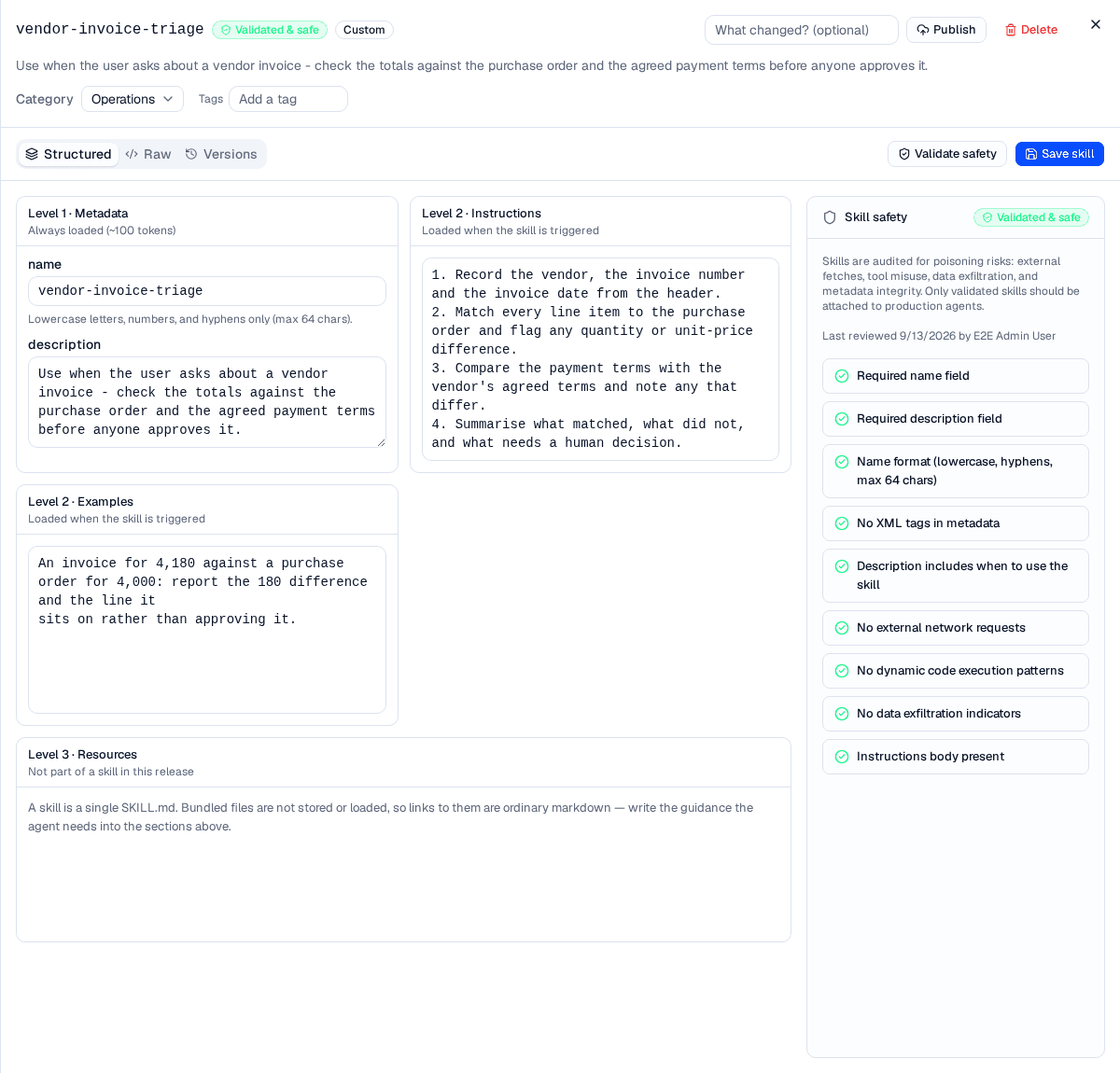
The three levels are a progressive-disclosure model: the metadata is always in the agent's prompt, the sections are fetched only when the agent reaches for the skill.
Open the Custom tab and choose Create skill.
Fill in name and description under Level 1 · Metadata, or switch to Raw and write the file directly. The name must be lowercase letters, numbers and hyphens, at most 64 characters.
Write the body under Level 2. The description is what the agent reads to decide whether to reach for the skill, so write it as a trigger — "Use when…".
Pick a Category and add Tags in the sheet header. Tags are free text; press Enter or comma to commit one.
Choose Save skill. The server parses and scans the document as it stores it, and the rail updates to the stored verdict.
Optionally write a Change note, then choose Publish.
Validate safety runs the same scan without saving, so you can see what a change would do before committing it. The rail says "Unsaved preview — the stored verdict changes when you save" while you are looking at one.
A skill is a single SKILL.md. Bundled files are not stored or loaded, so links to a scripts/ directory are ordinary markdown text — write what the agent needs into the sections themselves.
The nine safety checks
Skills are instructions an agent follows, so a skill that reaches outside its own document can change behaviour after it was reviewed. That is the threat the scan is built around. Each check is a pass, a warning or a failure:
| Check | Fails or warns when |
|---|---|
| Required name field | The frontmatter has no name. Fails. |
| Required description field | The frontmatter has no description. Fails. |
| Name format | The name is not lowercase letters, numbers and hyphens, is over 64 characters, or is a reserved word. Fails. |
| No XML tags in metadata | The name or description contains <…>. Fails. |
| Description includes when to use the skill | The description is under 20 characters or carries no trigger phrase. Warns. |
| No external network requests | The body contains a URL or a fetch-shaped pattern. Fails. |
| No dynamic code execution patterns | The body mentions eval, exec, a subprocess or a shell. Warns. |
| No data exfiltration indicators | The body carries encoding or exfiltration language. Fails. |
| Instructions body present | Every section is empty. Warns. |
Those checks resolve to one of four statuses:
- Validated & safe — every check passed. Only this status can be published.
- Pending review — the three required checks passed, but something warned.
- Safety flagged — a check failed. A flagged platform skill cannot be adopted.
- Draft — never scanned. A scan never resolves to this, so it only ever means a skill nobody has validated yet.
There is no second copy of this scan in the browser. The verdict you see always came from the server, so what the editor shows and what the publish gate enforces cannot disagree.
Publishing and versions
Saving and publishing are different acts, and the difference is the whole versioning model.
Saving updates the draft. Publishing snapshots the saved draft as a numbered version — and moves nobody. An agent runs the version it was pinned to until someone deliberately moves it, so publishing a new version never changes what a configured agent does.
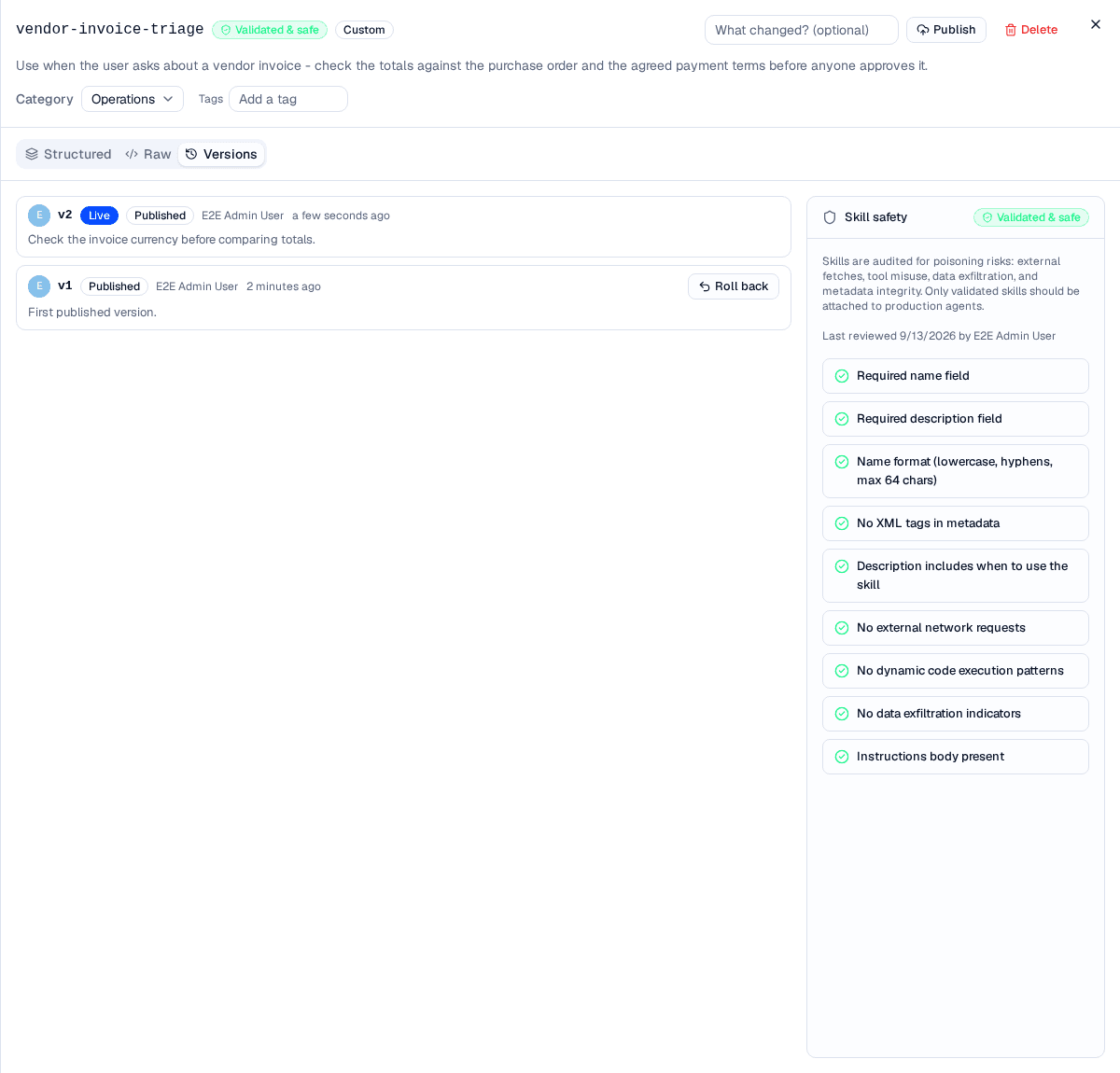
Every publish is listed with its author, its change note and the time — and every earlier version stays listed and resolvable.
Publish is offered only when the stored verdict is Validated & safe and there are no unsaved edits, because publishing snapshots the saved draft rather than what is on screen. The Unpublished changes badge in the header says when the draft has moved ahead of the published version.
Roll back
Roll back on an older version re-publishes that version's content as a new version. Nothing is deleted or renumbered — an agent pinned to any earlier number must still be able to resolve it — and agents already pinned do not move. Your unpublished draft is left alone. Roll back is disabled while the editor holds unsaved edits, because a rollback reloads the editor from the server's copy of the draft.
Rolling back is not available on a platform skill: your organization owns the pins but not the skill.
Force update
When agents in this organization are pinned to something older than the published version, the Versions tab shows a banner naming the count and a Force update control. Confirming moves every one of those agents onto the published version from its next beat. Agents in other organizations are not affected.
Re-pinning an agent to a different version is what changes what it runs. A rollback does not: it moves the library's current version, while every agent stays on the version it was pinned to.
Attaching a skill to an agent
Skills are authored here and attached on the project Team pane — open an agent and use its Skills & Tools tab.
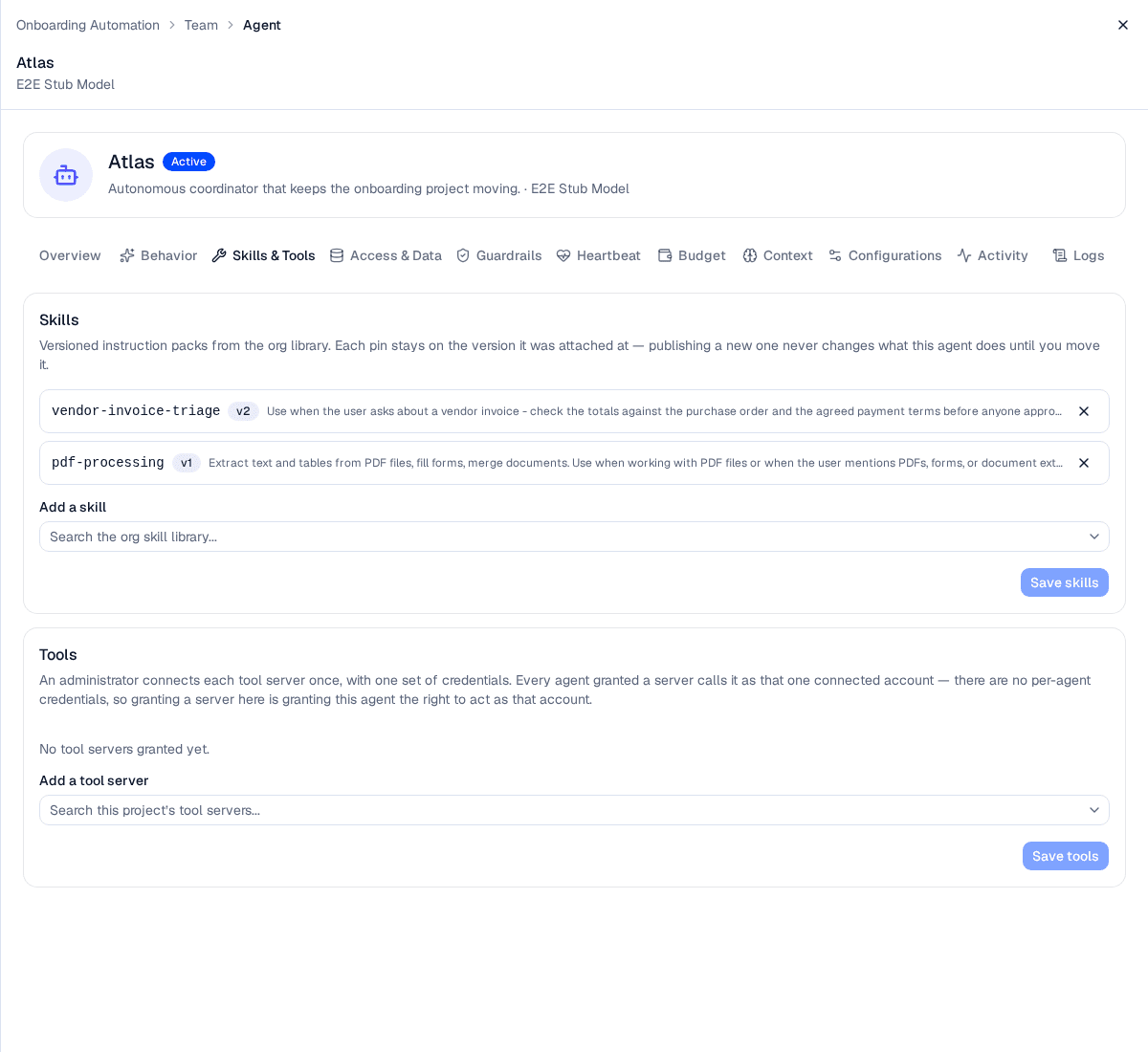
Each pin carries the version it was attached at. v2 and v1 here are two different snapshots of two different skills, not a sequence.
The picker offers only skills in this organization's library that have a published version — an unpublished skill cannot be attached. An agent may hold at most 50 pins.
When the library moves ahead of a pin, the row offers a control to move that one agent onto the published version; Force update in the Versions tab does the same thing for every agent at once.
Skills reach an agent's beats, not console or channel chat turns. The beat's prompt lists each pinned skill's name and description, and the agent calls an inline LoadSkill read to pull a body when it decides the skill applies — at most two bodies per beat by default, and loading one costs no action budget.
Delete a custom skill
Delete sits in the editor header and on the card in the grid. Before you can confirm, the dialog reads how many agents in this organization are pinned to the skill and says so — that number is the whole question. The skill is then detached from every agent in this organization.
The version history is kept, so an agent that is still pinned goes on resolving the version it was pinned to. It cannot be attached again, though: the attach picker offers only skills that are not deleted, and there is no restore.
A platform skill has no Delete, only Remove from org.
Field reference
| Field | Where | Notes |
|---|---|---|
name | Level 1 · Metadata | Lowercase letters, numbers and hyphens, at most 64 characters. Not askrai or rai. |
description | Level 1 · Metadata | What the skill does and when to reach for it. This is the line the agent reads in its prompt, so write the trigger into it. |
| Category | Sheet header | One of Documents, Engineering, Operations, Support, Data, Compliance. |
| Tags | Sheet header | Free text, any number. Searchable. Three show on a card; the rest collapse into a +N. |
| Body | Level 2 sections | Markdown under ## headings. At most 40,000 characters across the whole file. |
| Change note | Sheet header | Optional, at most 500 characters. Kept with the version it published. |
Troubleshooting
| Symptom | Cause |
|---|---|
| Publish is disabled | The stored verdict is not Validated & safe, or the draft has unsaved edits. Save first, then read the safety rail. |
| Add to org is disabled | The skill is safety-flagged, or it has never been published. |
| The Structured tab is read-only on a skill you own | The frontmatter could not be parsed, and a banner says why. Editing it there would overwrite metadata the server read correctly — fix the file on the Raw tab. |
| A skill is missing from an agent's picker | It has no published version, or it is not in the active organization's library. |
| Saving an agent's skills fails, naming a skill | A pinned skill has left the library — deleted, or removed from this organization. Remove that row on the agent's Skills & Tools tab and save again. |
| The grid is empty after switching organizations | The library is per organization. A skill adopted by one organization is not adopted by another. |
Related
Team
Pin a skill to an agent and move it between versions.
Tools
The other half of an agent's capabilities — what it can call, rather than what it knows.
Policies
The ceilings a beat runs under while it uses a skill.
Organizations
The organizations a skill library belongs to.
Settings
Every area of the Settings plane.
Programmable Access
Issue and govern API, CLI, and MCP credentials that let external applications and AI agents query AskRAI with enterprise-grade controls
Tools
Connect MCP tool servers, review every tool a server offers before an agent can call it, and grant servers to the organizations that may use them