Directory Sync
Provision users and groups into AskRAI from your identity provider via SCIM 2.0, or pull them from Google Workspace with the Admin SDK Directory API
Directory Sync keeps AskRAI's users and groups in step with your identity provider so access management always reflects your real org. Open it under Settings → Directory Sync. AskRAI supports two directory sources — pick the one your identity provider uses.
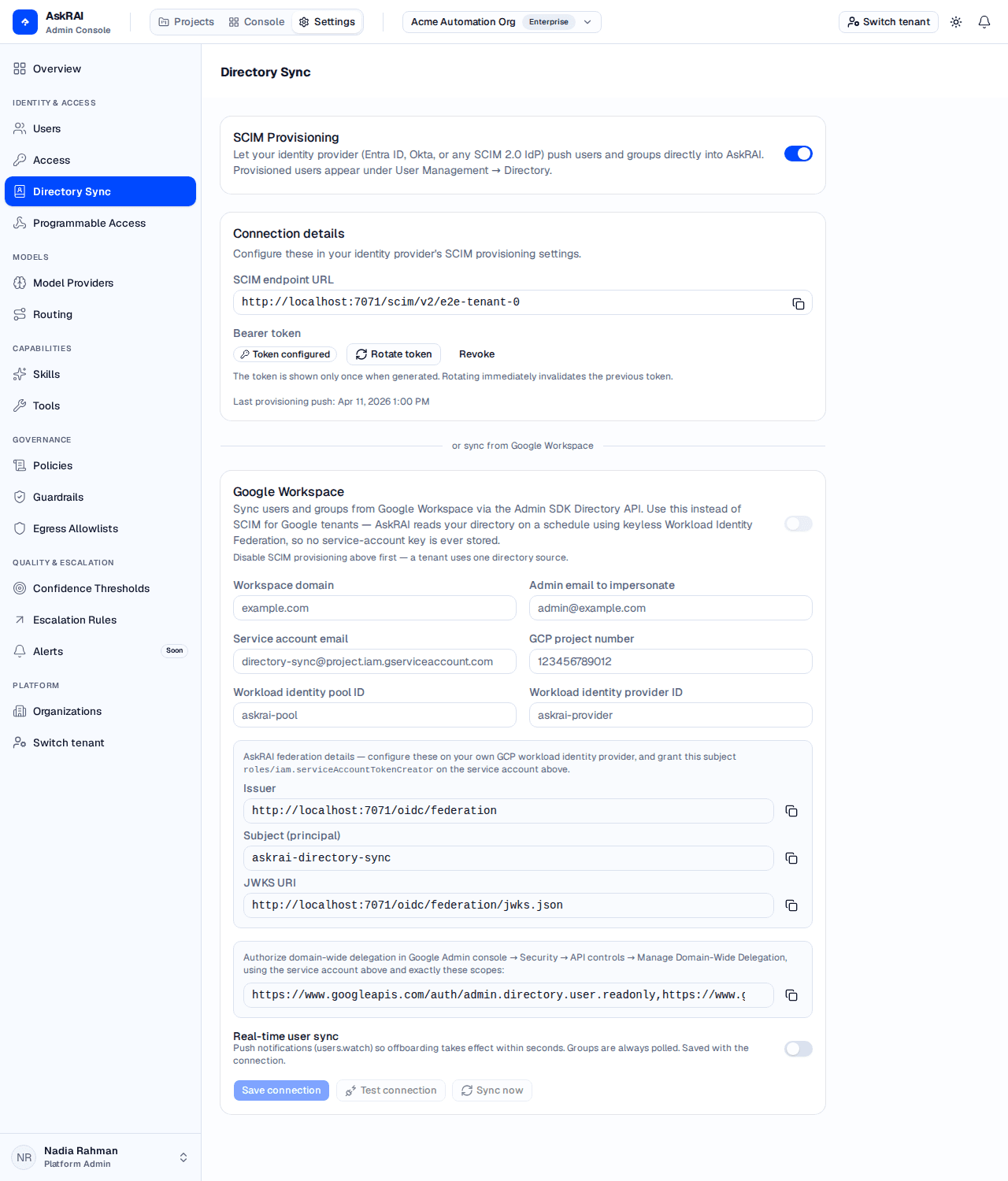
Directory Sync presents both sources on one page: generic SCIM 2.0 at the top and Google Workspace below. A tenant uses one source at a time.
Directory Sync lives in the Settings area, which is restricted to the Platform Admin role. A member who opens Settings → Directory Sync is redirected to the Projects workspace and won't see the Settings entry at all. Roles are assigned under Settings → Access.
Choosing a directory source
| Source | Model | Use when |
|---|---|---|
| Generic SCIM 2.0 | Your identity provider pushes changes to AskRAI | Microsoft Entra ID, Okta, or any SCIM 2.0 identity provider |
| Google Workspace | AskRAI pulls your directory from Google | Google Workspace tenants (Google does not support outbound SCIM 2.0) |
A tenant uses one directory source at a time. Enabling Google Workspace sync is blocked while generic SCIM is enabled, and vice-versa — the inactive source shows a reminder to disable the other one first. Switch sources deliberately.
Generic SCIM 2.0
With SCIM provisioning, your identity provider pushes user and group changes to AskRAI in near real time. Enable it, generate a bearer token, and paste the endpoint URL and token into your IdP's provisioning settings.
Enable SCIM provisioning. Turn on the SCIM Provisioning switch. The Connection details card then exposes the endpoint URL and token controls.
Generate the bearer token. Click Generate token. AskRAI shows the SCIM endpoint URL and the token together — once.
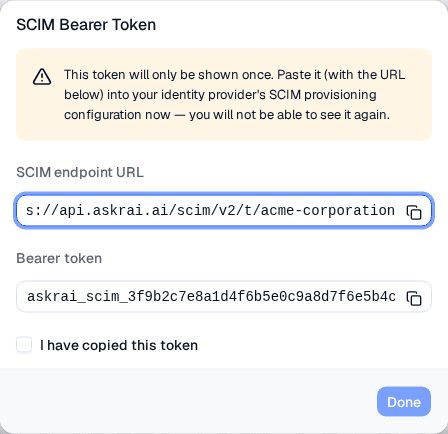
The bearer token is revealed only at generation time. Copy it before closing — you cannot view it again.
Configure your identity provider. Paste the SCIM endpoint URL and bearer token into your IdP's SCIM provisioning settings (for example, Entra ID's Provisioning blade or Okta's Provisioning tab). Your IdP then pushes users and groups to AskRAI.
To replace a token, click Rotate token — this immediately invalidates the previous one, so update your IdP right away. Revoke removes the token entirely and stops inbound provisioning.
SCIM connection reference
| Field | Description |
|---|---|
| SCIM endpoint URL | The read-only base URL your identity provider posts to. Copy it with the adjacent button. |
| Bearer token | Authenticates inbound SCIM requests. Shown once at generation; status appears as a Token configured badge once set. |
| Last provisioning push | Timestamp of the most recent change your IdP pushed — confirms the connection is live. |
Google Workspace Directory Sync
Google Workspace can't push SCIM 2.0 to third-party apps, so AskRAI reads your directory through the Google Admin SDK Directory API using a service account with domain-wide delegation. There is no service-account key to download, upload, store, rotate, or leak — AskRAI authenticates with keyless Workload Identity Federation (WIF). AskRAI acts as its own OpenID Connect identity provider, mints a short-lived token, and federates it into your GCP project, which you configure to trust AskRAI. You connect AskRAI with six non-secret identifiers — your workspace domain, an admin email, the service-account email, your GCP project number, and the workload identity pool and provider IDs. No credential ever leaves Google.
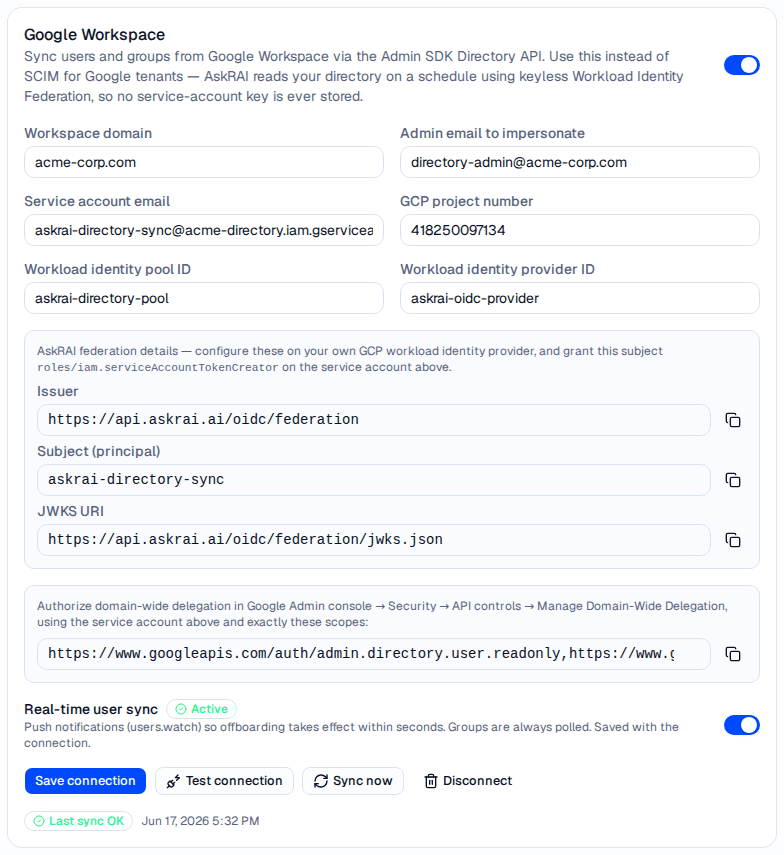
The issuer, subject and JWKS URI are values you paste into GCP, not values you enter here — they are what your project trusts, which is why no key ever changes hands.
Set up
Create a service account. In the Google Cloud console, create (or reuse) a project, enable the Admin SDK API, then create a service account. Note its email — you do not create or download a key.
Grant domain-wide delegation. In the Google Admin console, go to Security → Access and data control → API controls → Manage Domain-Wide Delegation and add a new client using the service account's client ID and the three read-only scopes below. AskRAI shows you the exact scopes to paste.
| Scope | Grants |
|---|---|
https://www.googleapis.com/auth/admin.directory.user.readonly | Read users |
https://www.googleapis.com/auth/admin.directory.group.readonly | Read groups |
https://www.googleapis.com/auth/admin.directory.group.member.readonly | Read group members |
Create a workload identity pool and provider. In your GCP project, create a workload identity pool and add an OIDC provider to it. Configure the provider to trust AskRAI as the identity provider:
- Issuer (URL) — the AskRAI federation issuer shown on the Google Workspace card (for example
https://api.be.askrai.ai/oidc/federation). - JWKS — AskRAI publishes its public signing keys at the JWKS URI shown on the card (the issuer's discovery document points to it). Google fetches these keys to verify the federation tokens AskRAI presents.
- Allowed audiences — keep GCP's default, which is the provider's own full resource name. AskRAI binds every federation token it mints to exactly that resource, so a token issued for your provider is accepted only by your pool — this per-tenant audience binding is what isolates your directory.
- Attribute mapping — map
google.subject = assertion.sub.
Grant the service account to the federated identity. On the service account, grant the roles/iam.serviceAccountTokenCreator role — not roles/iam.workloadIdentityUser — to the federation principal AskRAI shows on the card:
principal://iam.googleapis.com/projects/<project-number>/locations/global/workloadIdentityPools/<pool-id>/subject/<federation-subject>The serviceAccountTokenCreator role lets AskRAI's federated identity call iamcredentials signJwt to build the domain-wide-delegation assertion — there is no key for it to use instead.
Configure AskRAI. Enter your workspace domain, an admin email for the service account to impersonate, the service-account email, your GCP project number, the workload identity pool ID, and the workload identity provider ID. Click Save connection.
Test and enable. Click Test connection to confirm federation and the delegation work, then turn on the Google Workspace switch. AskRAI runs an initial sync and then keeps the directory current.
Connection reference
| Field | Description | Required |
|---|---|---|
| Workspace domain | The Google Workspace domain to sync (e.g. acme-corp.com) | Yes |
| Admin email to impersonate | A Workspace admin the service account acts as when reading the directory | Yes |
| Service-account email | The email of the service account you created in your GCP project (e.g. directory-sync@acme.iam.gserviceaccount.com) | Yes |
| GCP project number | The numeric ID of the project that holds your service account and workload identity pool | Yes |
| Workload identity pool ID | The ID of the workload identity pool you created | Yes |
| Workload identity provider ID | The ID of the OIDC provider you added to the pool | Yes |
| Real-time user sync | Registers a Google users.watch channel so user changes (including offboarding) propagate within seconds. Groups are always reconciled on the scheduled pull | No |
AskRAI also displays, read-only, the federation issuer, federation subject, and JWKS URI you authorize in GCP (steps 3 and 4). These are AskRAI-side values — copy them into your pool and IAM binding; you never enter them.
Sync controls
| Control | What it does |
|---|---|
| Test connection | Verifies the federation and domain-wide delegation and reports how many users are visible, without enabling sync |
| Sync now | Runs an on-demand reconciliation instead of waiting for the next scheduled pull |
| Disconnect | Removes the Google Workspace connection and disables Google sync. No key is stored, so nothing is left behind on the AskRAI side |
How sync works
AskRAI reconciles your Google directory into the same directory store as SCIM, so synced users and groups appear in Users, Roles & Groups and can back native groups — the rest of the platform doesn't care which source provisioned them.
- Scheduled pull — users, groups, and group members are polled on an interval. Use Sync now to run an on-demand sync.
- Near-real-time user changes — when Real-time user sync is on, AskRAI registers a Google
users.watchchannel so user changes (including offboarding) propagate within seconds. Groups and members are always reconciled on the scheduled pull (Google offers no group watch channel). - Deprovisioning — a user suspended or removed in Google Workspace is marked inactive in AskRAI on the next sync, revoking their access. Identities map by Google's stable user id, so a synced user lines up with the same person who signs in via Google.
Grant the service account only the three read-only scopes above, and impersonate a dedicated admin rather than a personal account. With keyless federation there is no long-lived credential to store, rotate, or leak — AskRAI mints a short-lived token per sync and federates it into your project. AskRAI never writes back to your directory — it reads it.
Where synced users appear
Provisioned users and groups land in the directory store and show up on the Users, Roles & Groups page. The Directory tab there lists every synced identity with a Synced from directory badge, so you can confirm a sync took effect.
Troubleshooting
| Symptom | Likely cause | Resolution |
|---|---|---|
| Settings → Directory Sync is missing, or opening it redirects to Projects | You're signed in as a member; directory configuration is Platform-Admin-only | Ask a Platform Admin to make the change, or to grant you the Platform Admin role under Settings → Access |
| Can't enable a source | The other source is still enabled | Disable the active source first — a tenant uses one directory at a time |
| Test connection fails | Federation not trusted, or domain-wide delegation not authorized | Confirm the pool's issuer matches the federation issuer and serves AskRAI's keys at the JWKS URI, the provider's allowed audience is its own resource name (GCP's default), the IAM binding grants roles/iam.serviceAccountTokenCreator (not workloadIdentityUser) to the federation subject, and the three read-only scopes are authorized in the Google Admin console |
| Last sync failed badge | Revoked delegation, a wrong admin email, or a changed pool/provider | Open the error shown on the card, fix the connection, then click Sync now |
| Offboarded user still active | Real-time user sync is off, or the change is awaiting the scheduled pull | Enable Real-time user sync, or click Sync now to reconcile immediately |
| Lost the SCIM token | The token is shown only once | Click Rotate token to issue a new one and update your identity provider |
Related pages
- Users, Roles & Groups — where synced users, the Directory tab, and native groups live
- Programmable Access — issue credentials for machine callers alongside human identities
- Settings — the rest of the platform configuration
Users, Roles & Groups
Manage user accounts, define roles with mapping rules including caller and credential types, and organize access through groups
Organizations
Group your projects under tenant-scoped organizations, switch the active organization to scope the Projects workspace, and manage each organization's name, slug, and plan tier