Assistants
Ask a project's assistants to build dashboards, propose agents and install connectors, and let them speak up when a run hits something the team can't get past
A project's assistants help you shape and watch its team: you ask, and they offer a dashboard, an agent to add or a connector to install, which you accept or not. They never act on their own.
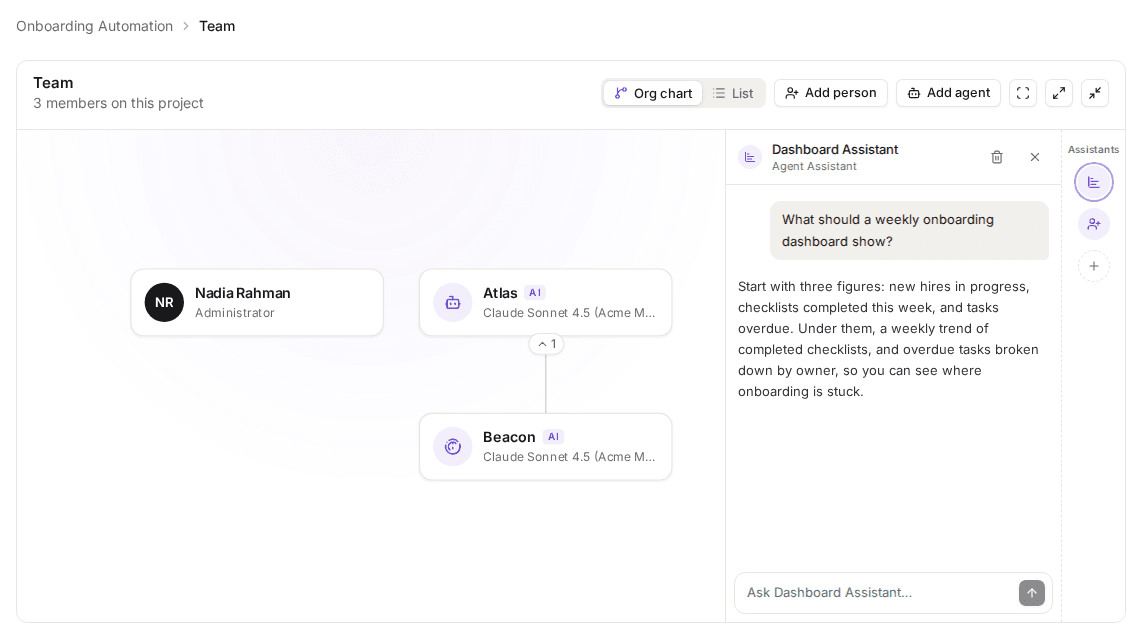
Assistants stand in a strip at the edge of the Team tab, and each opens its chat beside the org chart.
Open one from that strip on the project's Team tab. An assistant reads what the project's agents can read. It sits beside the team rather than on it: it isn't on the org chart, takes no tasks and messages no agents. A project holds at most one of each kind:
| Assistant | What it does |
|---|---|
| Dashboard Assistant | Builds dashboards from the project's data, for you to read and share. |
| Team Builder | Suggests agents and reporting lines to help you shape the team. |
| Integrations Assistant | Sets up MCP connectors so the team can reach the tools it needs. |
Adding and removing an assistant
Add an assistant. Click + on the strip, pick a kind and click Add assistant. You can also choose Create → Assistant at the right of the top header, from any tab of the project you have open: the same dialog opens, and the assistant you add opens on the Team tab. A kind already on the project shows as Added. The assistant gets the Assistant Model your routing configuration sets, or its Summarization Model when there's none, so it runs on one of your organization's own models.
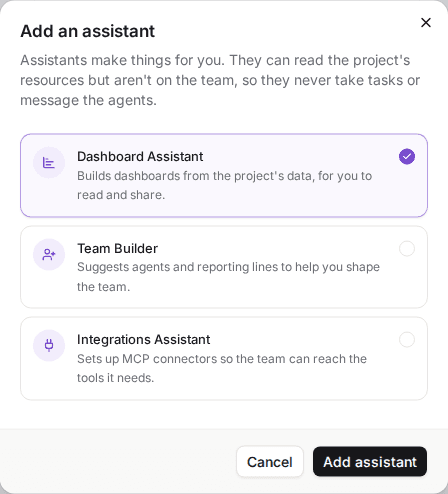
Each kind is a card to pick, and one already on the project shows as Added.
Remove an assistant. Click it on the strip, click the bin icon and confirm. What it made, its spend and its entries on the Activity tab stay on the project, and adding that kind again brings it back as it was.
Asking an assistant
Click an assistant on the strip to open its chat, then pick one of the suggested requests or type your own and press Enter. Its reply appears in the chat once it's written. Your chat with an assistant is yours alone: nobody else on the project reads it, an Admin included, and someone else who opens the same assistant starts a chat of their own. A dot on an assistant marks a reply you haven't read yet.
Every request is checked by guardrails before it reaches the model, and every reply before it reaches you. They're the guardrails of every agent on the project, whether it's running or not, together with those of your own groups. When one stops a message or a reply, the chat says which guardrail did, and so does the project's Activity tab. A reply's cost counts against the project's budget, and a project that is over its budget, on hold or archived can't be asked.
What an assistant reads. An assistant reads the systems the project's active agents are connected to, through their tools that only read: it never offers a tool that changes anything, nor one a policy holds for approval or an allowlist blocks. It reads nothing in the project's workspace, so a Mailbox archive's tools and a SQL connection's export_query never reach it, though a SQL connection's other tools do. Before you ask, its chat lists those systems under Can read. A reply that read one shows it as a step above the answer, such as Read Zendesk. Its tool calls appear on the tool server's Calls tab under the assistant's name, and they pass the same guardrails an agent's do. Team Builder also reads who is on the team, a step its reply shows as Read team structure. Every assistant can also read the project itself when your question needs it: its task board, its latest activity and its budget, with what each agent and assistant has spent. A reply shows each as a step: Read task board, Read project activity or Read project budget. It lists the board's most urgent open tasks and its latest finished ones, and the activity leaves out your agents' tool calls.
Adding a proposed agent
When you ask Team Builder for an agent, or agree to one it suggests, it proposes one as a card under its reply: the agent's name, whom it would report to, what it would do and its skills. A skill with a dashed outline matches no skill your organization can attach yet, and the agent is added without it. Until someone decides, the proposed agent also stands on the org chart with a dashed outline and a New tag, and clicking it opens the chat it was proposed in.
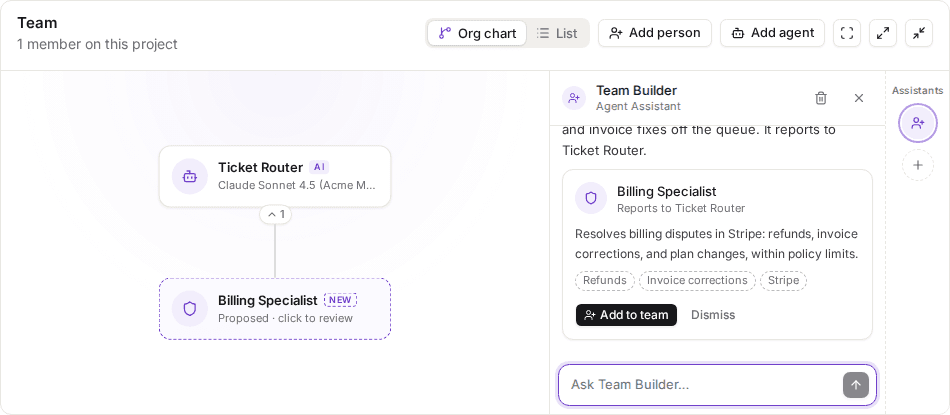
A proposed agent waits on the chart, dashed, until someone adds it or dismisses it.
Click Add to team to add it as Add agent would: it starts at Manual autonomy with its heartbeat on, so whatever it wants to do waits for someone's approval, and it starts at once if the team is running. Your approval shows on the Activity tab. Click Dismiss to drop it, and its card stays in the chat, dimmed. A proposal belongs to the project, not to your chat: anyone who opens Team Builder sees the open ones their chat doesn't show, other people's among them, above it under Other open proposals, and never what anyone said. Removing Team Builder dismisses its open proposals.
Installing a proposed connector
When you ask the Integrations Assistant to connect a system, it proposes a connector as a card under its reply. Connectors come only from AskRAI's own vetted catalogue, which holds Jira, GitHub and Linear today, and the assistant never offers an address of its own. The card shows the MCP server, its tools and the agents it would be installed for. A connector starts Read only. Choose Read and write to install the tools that change things too. Each tool shows Reads or Writes as its server's approved settings under Tools say. Until a tool is approved there, it shows no mark. Pick the agents under Agents with access, then click Install.
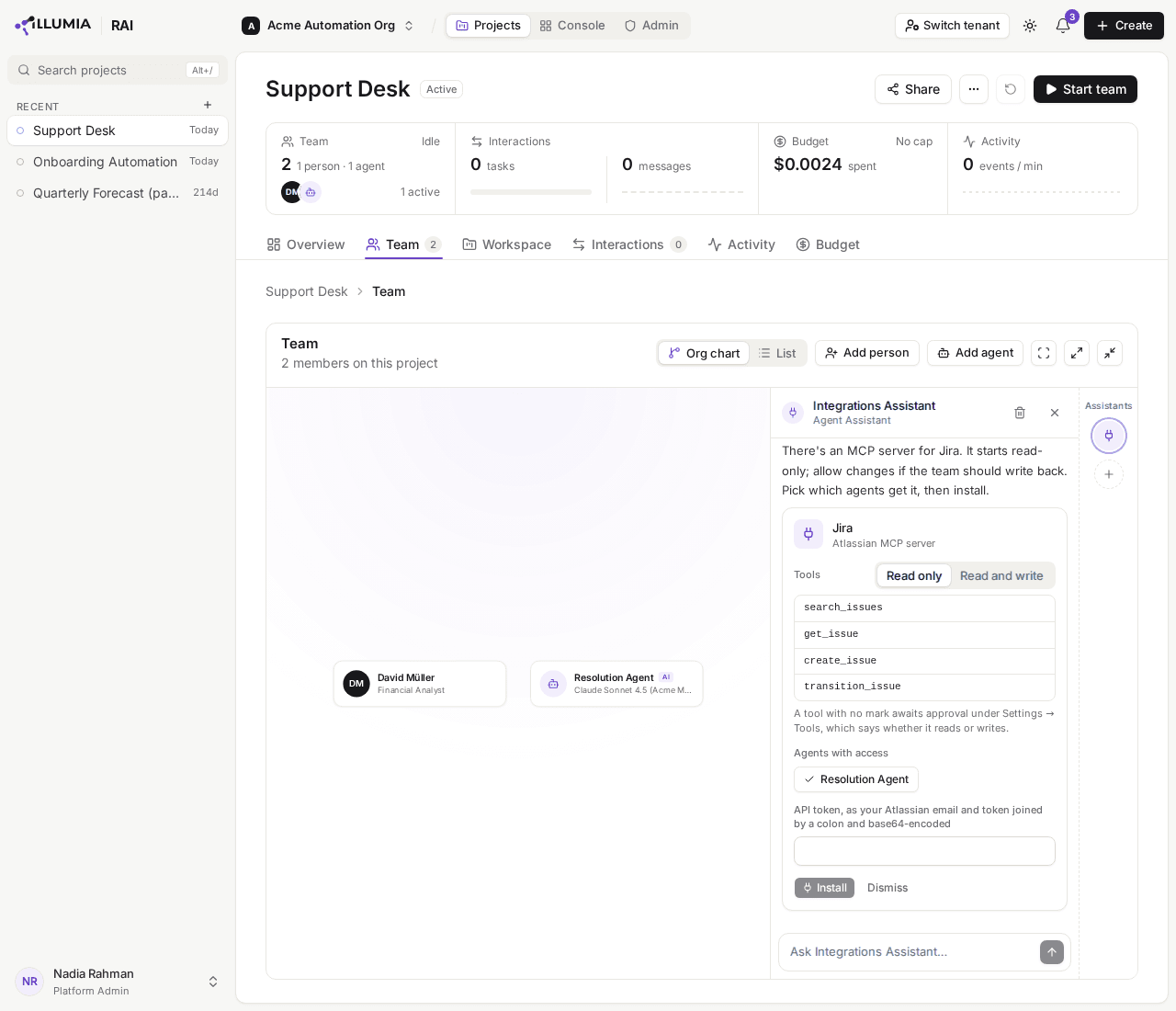
A proposed connector starts read-only, and its tools carry no mark until they're approved on their server.
If your organization already has that tool server, Install grants the agents its approved tools at once. A tool that changes things still waits on each agent's autonomy, as any tool does. If it doesn't, connecting a new tool server needs the Manage tools permission. Someone who holds it enters the server's credential on the card, and the server is connected as Settings → Tools connects one. The card then waits until its tools are approved and switched on there. Once they are, click Install again. Without that permission, the card names who holds it. Your install shows on the Activity tab.
Building a dashboard
Ask the Dashboard Assistant for one, such as "Build me a dashboard of the task flow". Its reply carries a card with the dashboard's title and the shape of its trend; click it, or Open, to see the whole dashboard: up to three headline figures, a trend of one or two lines over time, and a breakdown, largest first. Each chart has a table view, from the button at its top right. To change it, say what to change in the same chat, such as "Show it per week instead": each change is a new version, and the version buttons at the top of the dashboard switch between them.
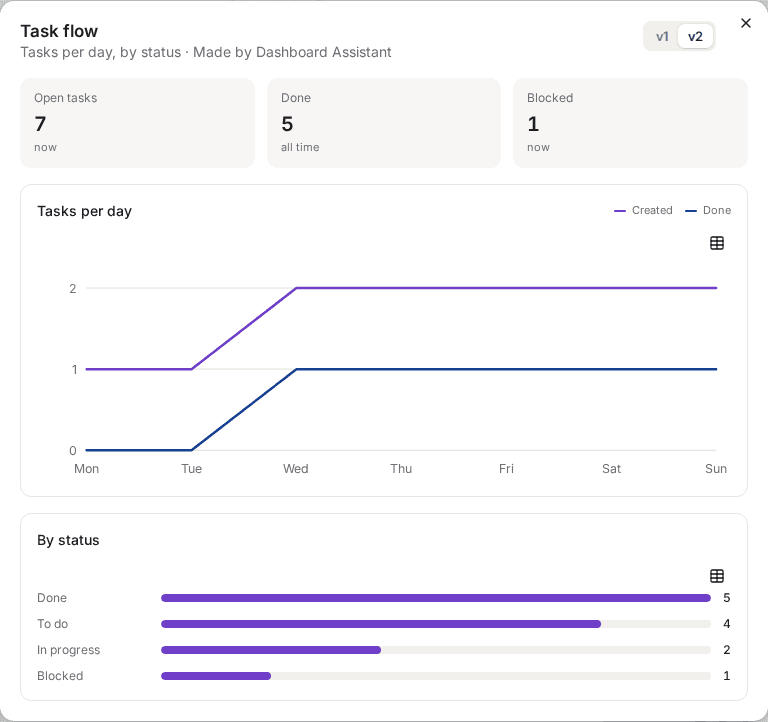
A dashboard the Dashboard Assistant built, at its second version.
The project's own figures, such as open tasks, spend or tasks done per week, are computed by AskRAI from the project itself whenever you open a dashboard, so they're always current and never written by the model, and read Computed by RAI beneath them. Once the project declares event types, the assistant can chart its events too, such as the share of closed cases saved each week: AskRAI computes those as well, and each reads Reported by agents, Recorded by people or both, by who recorded the events it counted. A figure the assistant read from one of your connected systems shows that system's name beneath it. Dashboards belong to the project: anyone with Read access sees them, and above your conversation the chat lists the dashboards built in other people's chats, and any of yours too old for it to show.
Pin a dashboard. Click Pin on its card, or in the dashboard itself, and choose where. Pin to Overview shows it as a card above the graph on the project's Overview tab for everyone on the project, with its newest version's title, first figure and trend: click the card to open the dashboard. Pin to Dashboard adds its figures and charts to the project's Dashboard tab, where they can be arranged beside the rest. Once pinned, the button reads Pinned, and the menu checks each place it is pinned to: choose a checked place to take it off.
When a run hits a wall
An assistant speaks up, unasked, when the team's work needs something it can help with: the Integrations Assistant when an agent needs a system the team can't reach, Team Builder when an agent finds work nobody on the team owns, and the Dashboard Assistant once the task board holds 20 open tasks. Its offer appears in its chat with a suggested reply, such as Connect the team to Jira, and for 12 seconds in a notice at the corner of the screen whose Open takes you to that chat. A dot on the Team tab marks it until you read it.
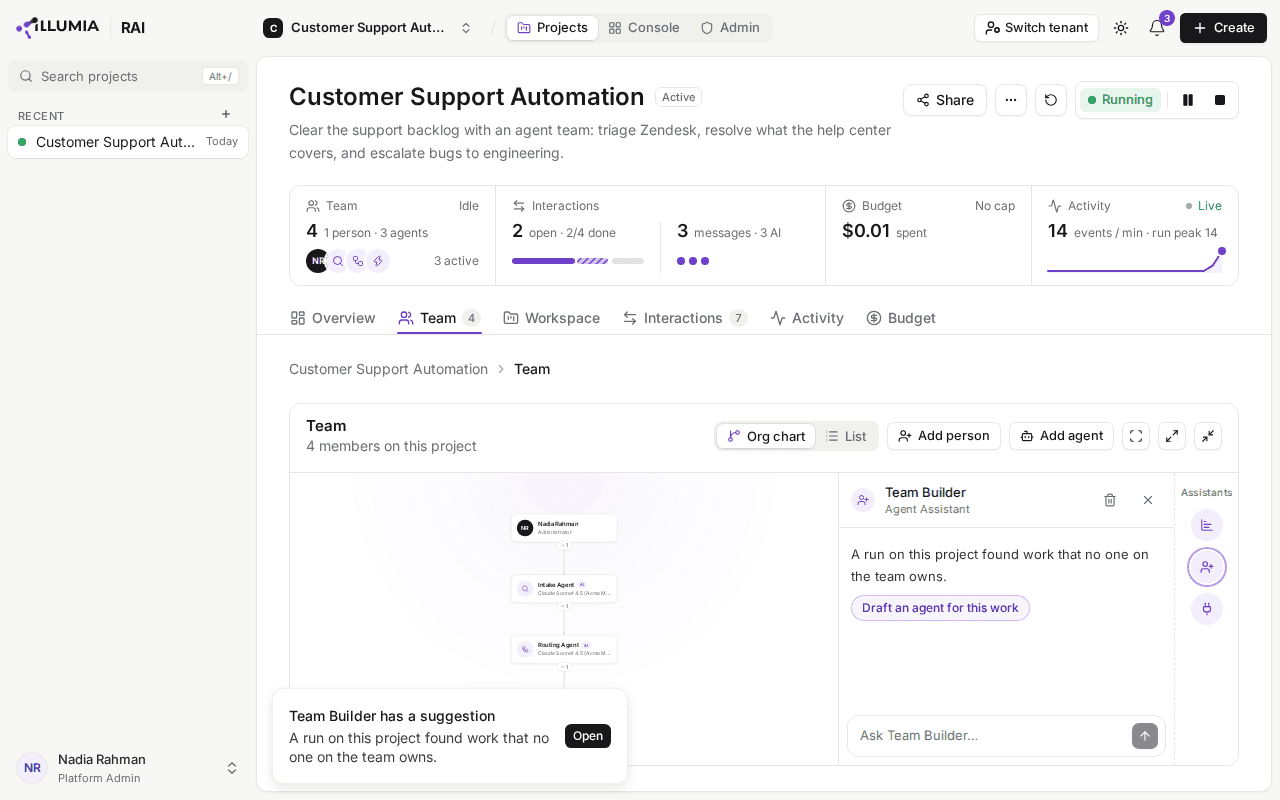
Team Builder speaks up when a run finds work nobody on the team owns.
It offers and changes nothing: pick the suggested reply or ask in your own words. Each speaks up once per project for each system, for a missing owner and for the board, until the project is reset, and only for a system in AskRAI's catalogue. Its words are written by the project's assistant model and pass the guardrails the project's agents run under. Each offer is charged to the project's budget, though it isn't counted as a reply, and everyone with Write access sees the same offer in their own chat. To turn offers off, edit the project and switch off Assistant suggestions: the assistants then wait to be asked.
Two runs, start to finish
A support team that speaks up. An Intake Agent triages a Zendesk backlog, a Routing Agent hands each ticket to its owner, and a Resolution Agent answers how-to tickets and escalates bugs. The run reaches two walls. Routing finds billing disputes that nobody on the team handles, and Team Builder offers an agent for them: ask it for a billing specialist, and add the one it proposes. Resolution has bugs to escalate and no way into Jira, and the Integrations Assistant offers the Jira connector: pick Connect the team to Jira, give it to the Resolution Agent with Read and write, and install it. The routed disputes go to the new agent, and the Resolution Agent files the bugs in Jira through the connector.
Release notes that wait to be asked. With Assistant suggestions off, a Changelog Agent collects what was merged and a Release Writer turns it into customer-facing notes. The Changelog Agent stops: it can't read the repository, and says so on the Activity tab and in a message to its lead. Ask the Integrations Assistant to connect the team to GitHub and install the connector for the Changelog Agent, and its next beat reads the merged pull requests and saves the changelog. The Release Writer then stops: nobody on the team reviews notes before they go out. Ask Team Builder whether you need a reviewer agent and add the Quality Reviewer it proposes. It starts at Manual, so its approval of the draft waits for yours on the Interactions tab. Once you approve it, the Release Writer publishes the notes to the workspace's release-notes/ folder.
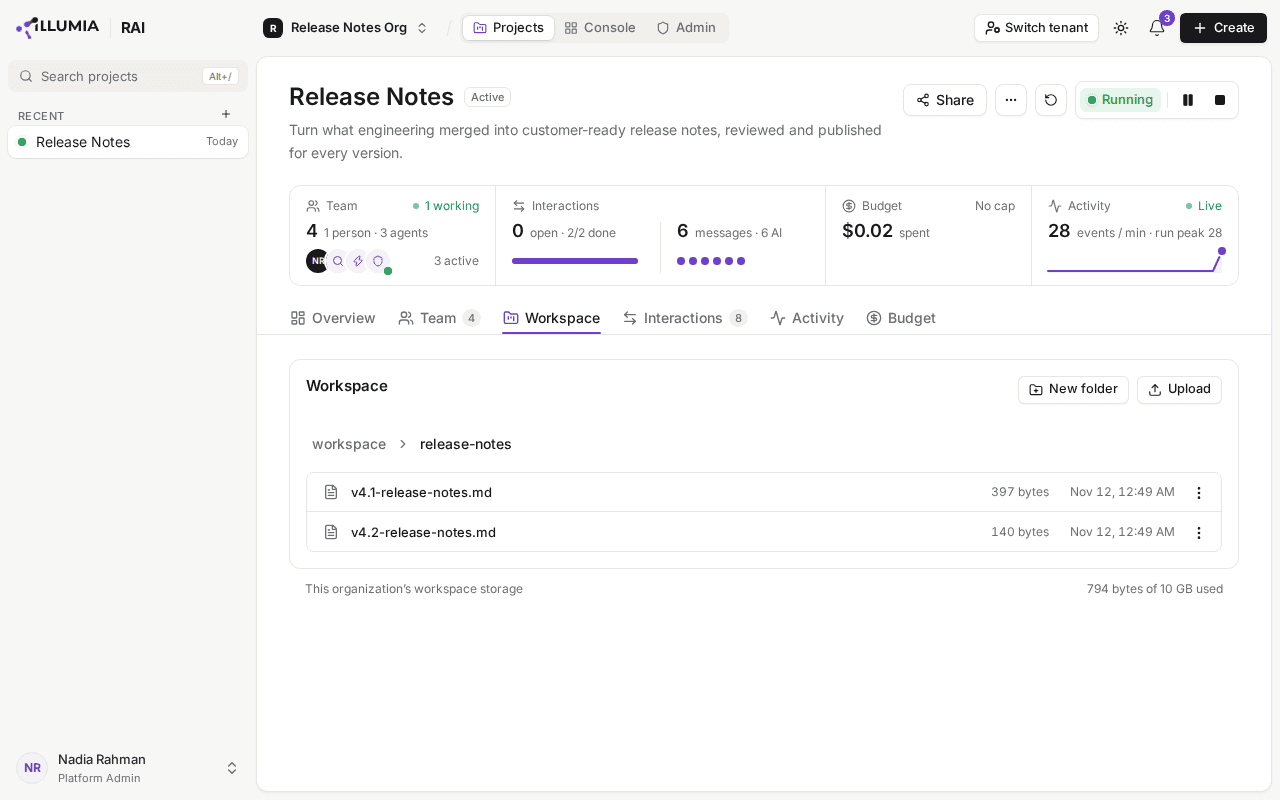
The notes land in the workspace once the run has what it was missing.
Who can use them
Adding, removing or asking an assistant, adding or dismissing a proposed agent, changing, installing or dismissing a proposed connector, and pinning or unpinning a dashboard need Write access to the project. Anyone with Read access still sees the assistants on it and can open one. Its suggested requests, message box, Add to team, Install, Dismiss, Pin, a connector's access and its agents are disabled, as are + and Create → Assistant, each with a reason naming the Write access it needs. While a project has no assistants, they don't see the strip at all, and an assistant's offers never reach them. On an Archived project, Create → Assistant is disabled for everyone, and it is also disabled while no project is open.
External Access (A2A)
Open a project's agent to AI agents outside AskRAI, which hand it work over the A2A protocol with an API key, an OAuth 2.0 client or a signed JWT, and, for the outside agent's developer, read its card, send a request, and read the answer, every refusal and the timing
Interactions
Run a project's team of AI agents and people as a live, autonomous workspace — start and stop the team, exchange messages, manage a shared task board, watch activity, and approve agent proposals