Tickets
View and manage escalated support tickets with status tracking, severity classification, and conversation details
The Tickets page displays support tickets created when conversations are escalated by your configured escalation rules. You can search, filter, and update tickets to track resolution progress, review the original conversation, and assign tickets to team members. Tickets are listed newest-updated-first by default, and Table view lets you re-sort them by creation or update time. A Refresh button beside the filters re-runs the current query — the page loads once and does not poll, so this is how you pick up tickets raised since you opened it.
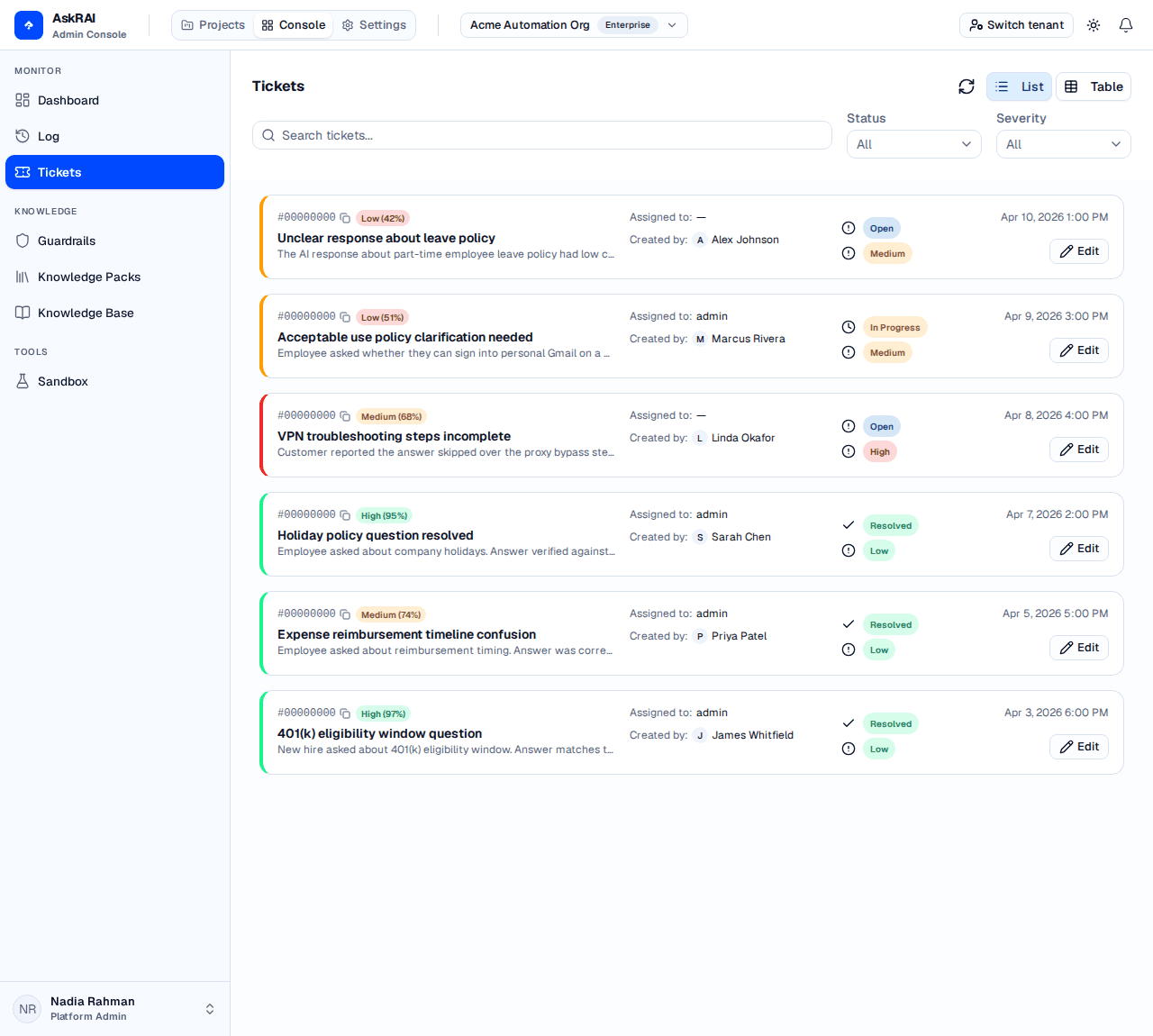
The Tickets page displays all escalated conversations as actionable support tickets.
Key concepts
- Ticket — a record created when an AI conversation triggers an escalation rule. Each ticket captures the original question, the AI response, and metadata about the interaction.
- Status — tracks where a ticket is in the resolution workflow:
Open,In Progress,Resolved, orClosed. - Severity — indicates urgency:
Critical,High,Medium, orLow. - Confidence score — the AI's self-assessed confidence in its response, expressed as a percentage. Lower confidence often triggers escalation. Not every ticket carries one — see Conversation Tab.
Viewing Tickets
Tickets appear as cards in list view by default. Each card shows the ticket ID (truncated to its first 8 characters, with a copy button), an Escalation badge, the title and description, the assignee, the creator, status, severity, and the creation date. A confidence badge is shown only when the ticket carries an AI confidence score. Toggle between List and Table view using the buttons in the top-right corner.
The list shows 10 tickets per page. When there is more than one page, a pager appears below the list; it is hidden when all results fit on a single page. The current page is kept in the URL alongside the active filters — the page parameter is zero-based and omitted on the first page (page 2 is ?page=1) — so a filtered, paged view can be shared as a link. Changing a filter returns you to the first page, but opening a ?page=N link takes you straight to that page.
Tickets load newest-updated-first (updated_at descending) by default. To change the order, switch to Table view and click the Created or Updated column header — the two sortable columns. Clicking a column sorts by it; clicking the active column again flips the direction between descending and ascending, shown by the arrow on the header. Those are the only two sortable fields, and the card (List) view has no sort control, so the order can only be changed from Table view.
Searching and filtering
Use the search bar and filter dropdowns above the ticket list to narrow results:
| Filter | Options | Description |
|---|---|---|
| Search | Free text | Case-insensitive substring match on the user's display name, the question, and the answer. A ticket ID matches only when you enter the complete ID |
| Status | All, Open, In Progress, Resolved, Closed | Filter by resolution status |
| Severity | All, Critical, High, Medium, Low | Filter by urgency level |
The truncated 8-character ID shown on a ticket card will not match a ticket by ID — it is still substring-matched against the name, question, and answer text, so it may incidentally hit an unrelated ticket. Use the copy button on the card or in the details drawer to get the full ID, then paste it into the search box.
Active filters appear as dismissible chips below the filter bar. Click the X on any chip to remove that filter.
Viewing ticket details
Click any ticket card — or any row in Table view — to open the details drawer on the right side of the page.
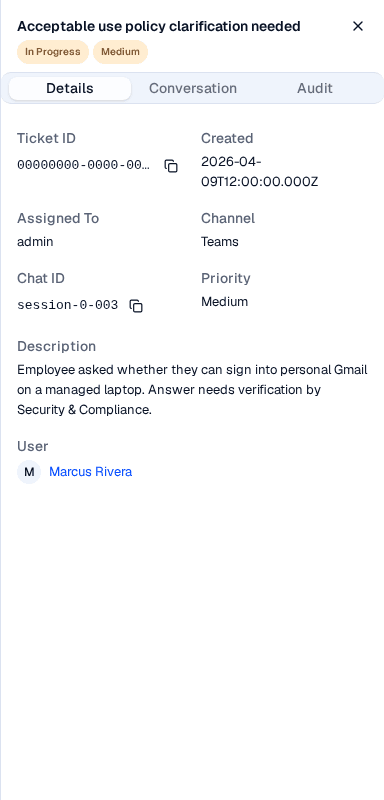
The details drawer provides full ticket information across three tabs.
The drawer has three tabs:
Details tab
A Created by Escalation Rule banner is pinned at the top of the tab for tickets tagged escalation — which is every ticket the platform creates, since escalation rules are the only ticket-creation path.
Below the banner, the tab displays the ticket metadata:
| Field | Description |
|---|---|
| Ticket ID | Unique identifier, with a copy button |
| Created | Timestamp when the ticket was created |
| Assigned To | The team member responsible for resolution (shown as — while the ticket is unassigned) |
| Channel | The communication channel where the conversation occurred, copied from the source conversation when the ticket is created. Blank (shown as —) on tickets created before this was added |
| Chat ID | Session identifier linking to the original conversation, with a copy button |
| Priority | The ticket's severity level |
| Description | The rule that escalated the conversation, as Escalated by rule: <rule name> |
| User | The person who asked the question — display name next to a circle containing their first initial |
Channel is populated on new tickets only. Escalation now copies the channel of the originating conversation onto each ticket it creates, so the Channel field in the drawer — and the Channel column in Table view — shows where the conversation took place (Teams, Web Chat, API, and so on). Tickets created before this was added were not backfilled, so their Channel stays blank and renders as an em dash (—). To confirm where any conversation took place, open it in the Conversation Logs.
Conversation tab
Shows the original interaction that triggered the escalation:
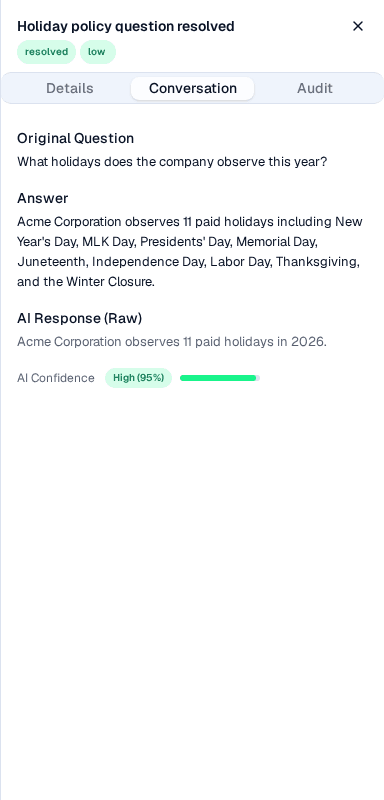
This is the exchange that triggered the ticket, captured as it was answered — editing the knowledge base afterwards does not change what is shown here.
- Original Question — what the user asked
- Answer — the response that was provided
- AI Response (Raw) — the model's own response text as recorded on the source conversation. Shown only when it differs from the answer that was delivered, which makes it uncommon
- AI Confidence — a labeled score with a progress bar showing how confident the AI was in its answer. Shown only when the ticket carries a confidence score
If the escalation rule that created the ticket has Include AI context cleared, the ticket is stored with no AI response and no confidence score: the card shows no confidence badge, and this tab shows only the question and the answer — no AI Response (Raw) and no AI Confidence bar. The same is true when the source conversation recorded no confidence score. See Escalation Rules for the toggle.
Audit tab
Shows governance and tracking information: the audit ID (with a copy button), the last update timestamp, and the ticket's status. When the ticket carries a chat/session ID, a View conversation in Log button appears and navigates to the full conversation in the Conversation Logs page.
Editing Tickets
You can update ticket status, severity, and assignment in two ways:
Inline editing
Click directly on a ticket card's Status chip, Severity chip, or Assigned To value to edit it in place. Select the new value from the dropdown, or type a new assignee name and press Enter — or clear the field entirely and commit to remove the current assignee (press Escape to cancel; clicking away also commits what you typed). Changes save automatically. Inline editing is available on the cards in List view only — in Table view, use the edit (pencil) action on a row to open the edit dialog.

Clicking the Assigned To value on a card turns it into a text field you can type a new assignee into.
Edit dialog
Click the Edit button on any ticket card to open the edit dialog. The dialog lets you update Status and Severity from dropdown menus, and set Assigned To in a free-text field (placeholder "Unassigned"); clearing that field and saving removes the assignee. Save Changes stays disabled until at least one of the three fields differs from its saved value; Close prompts you to confirm before discarding unsaved changes.
Clearing the Assigned To field unassigns the ticket. Empty the field and commit — inline on a card, or in the edit dialog — and the current assignee is removed; the field then reads —. You can also replace one assignee with another at any time. (An unchanged, already-empty field is left alone, so editing only a ticket's status never disturbs its assignee.)
When you change a ticket's status to Resolved, the system automatically records the resolution timestamp. Changing it back to another status clears the resolution record.
Field reference
| Field | Description | Editable |
|---|---|---|
| Ticket ID | UUID assigned when the ticket is created | No |
| Title | The first 100 characters of the user's question (or Low confidence query when no question was recorded) | No |
| Description | The escalating rule, recorded as Escalated by rule: <rule name> | No |
| Status | Open, In Progress, Resolved, Closed | Yes |
| Severity | Critical, High, Medium, Low | Yes |
| Assigned To | Free text — name or email of the responsible team member. Can be set, replaced, or cleared to unassign | Yes |
| Confidence Score | AI confidence percentage (0–100%). Absent on tickets stored without AI context or without a recorded score | No |
| Channel | Communication channel (e.g., Teams), copied from the source conversation when the ticket is created. Blank (—) on tickets created before this was added | No |
| Created At | Timestamp of ticket creation | No |
| Updated At | Timestamp of last modification | No |
| User | Display name of the person who asked the question | No |
| Question | The original user question | No |
| Answer | The response provided to the user | No |
| Escalation Tag | Indicates the ticket was created by an escalation rule | No |
Tickets are created automatically by escalation rules — that is the only path that creates a ticket. You cannot create a ticket manually from the Tickets page, and a ticket cannot be deleted from the console. Configure Escalation Rules to control when tickets are generated, and which severity and assignee they are created with.
Related pages
- Conversation Logs — view the full conversation that generated a ticket
- Dashboard — monitor overall platform activity and response metrics
- Settings — configure escalation rules that create tickets
- Guardrails — the safety and compliance checks that run on every turn