Knowledge Base
Create, search, and curate the Q&A pairs and document chunks that power your AI assistant's responses
The Knowledge Base is the central content store that powers your AI assistant's responses. It holds two types of items — Q&A pairs, which you author in the console or which the platform imports or generates from a file uploaded to a Q&A-type content pack, and document chunks that the platform extracts from uploaded files — and gives curators a unified workspace to search, filter, edit, rate, and govern every entry across the entire tenant.
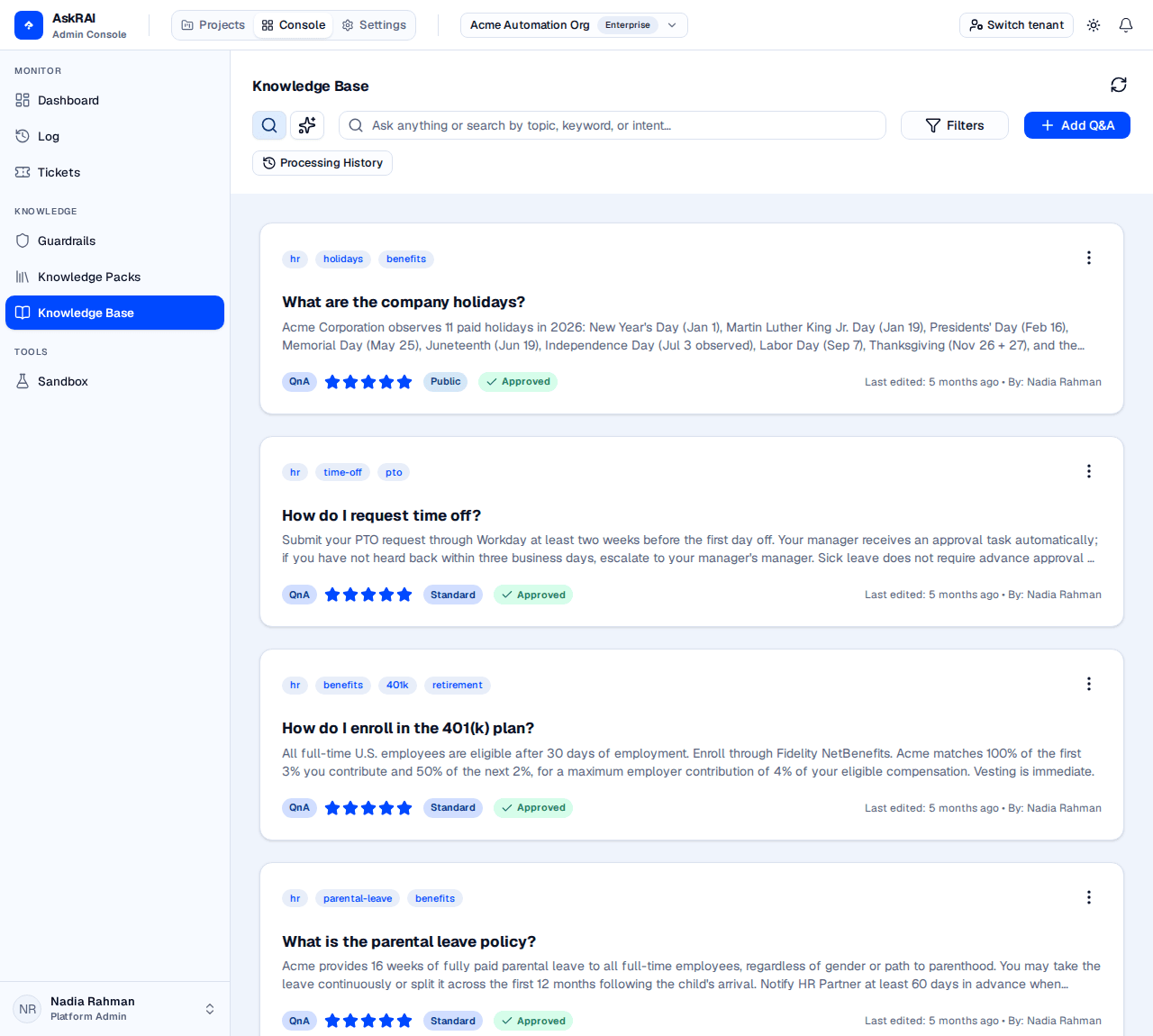
The Knowledge Base page in Text Search mode, with the seeded Employee Handbook entries visible.
Key concepts
- Q&A pairs — questions and answers. Each pair has a question (what the user might ask) and an answer (what the assistant should respond with). Pairs reach the Knowledge Base by three routes: authored manually with Add Q&A, imported row-by-row from a CSV or XLSX file uploaded to a Q&A-type content pack, or generated by the platform from a PDF uploaded to a Q&A-type pack. Imported and generated pairs are created as Draft.
- Document chunks — when you upload a PDF to a document-type content pack, the system splits it into chunks. Each chunk contains a portion of the document together with the page numbers it came from. The same file uploaded to a Q&A-type pack produces Q&A pairs instead.
- Content packs — containers that group Q&A pairs or document chunks together. Most items belong to a pack, but a Q&A can be saved without one.
- Status workflow — items move through statuses that control visibility: Draft (hidden from users), Approved (live), Needs Attention (flagged for review), and Discarded (soft-deleted). Only Approved items are retrievable, so a new Q&A — which starts as Draft — is invisible to the assistant until you approve it.
- Vector index — Q&A pairs and document chunks are embedded as they are written, so there is nothing to rebuild and no reindex to schedule: a curator's change is searchable as soon as it saves. Every search is scoped to your tenant.
Search modes
The toolbar exposes two search modes via a toggle on the left of the search field. Switch between them by clicking the magnifying-glass icon (Text Search) or the sparkles icon (AI Search).

The search-mode toggle sits to the left of the search field, with Filters and Add Q&A to its right.
Text Search
Text Search is the default mode. As you type in the search field, results filter in real time across the question, answer, title, section heading, chunk content and tag fields — so a free-text tag that the Filters popover cannot offer is still findable by typing it here. Combine it with the Filters popover to narrow by tag, item type, status, sensitivity, and rating, and to change the sort order.
Active filters other than Item Type appear as chips beneath the toolbar, where you can clear them individually. Item Type has no chip — reset it from inside the Filters popover, either by setting Type back to All or by clicking Clear All, which lives inside the popover and resets every filter at once.
AI Search
AI Search runs a vector similarity search across the entire tenant knowledge base: your query is embedded and the nearest items are returned. Use it when you cannot remember the exact wording of an item, want to find paraphrased duplicates, or need to discover items by intent rather than by keyword.
It matches on meaning only — there is no keyword matching underneath it. An exact string such as a policy code, a part number or a person's name is what Text Search is for; a short identifier carries almost no meaning to embed, so AI Search is the wrong tool to look one up with.
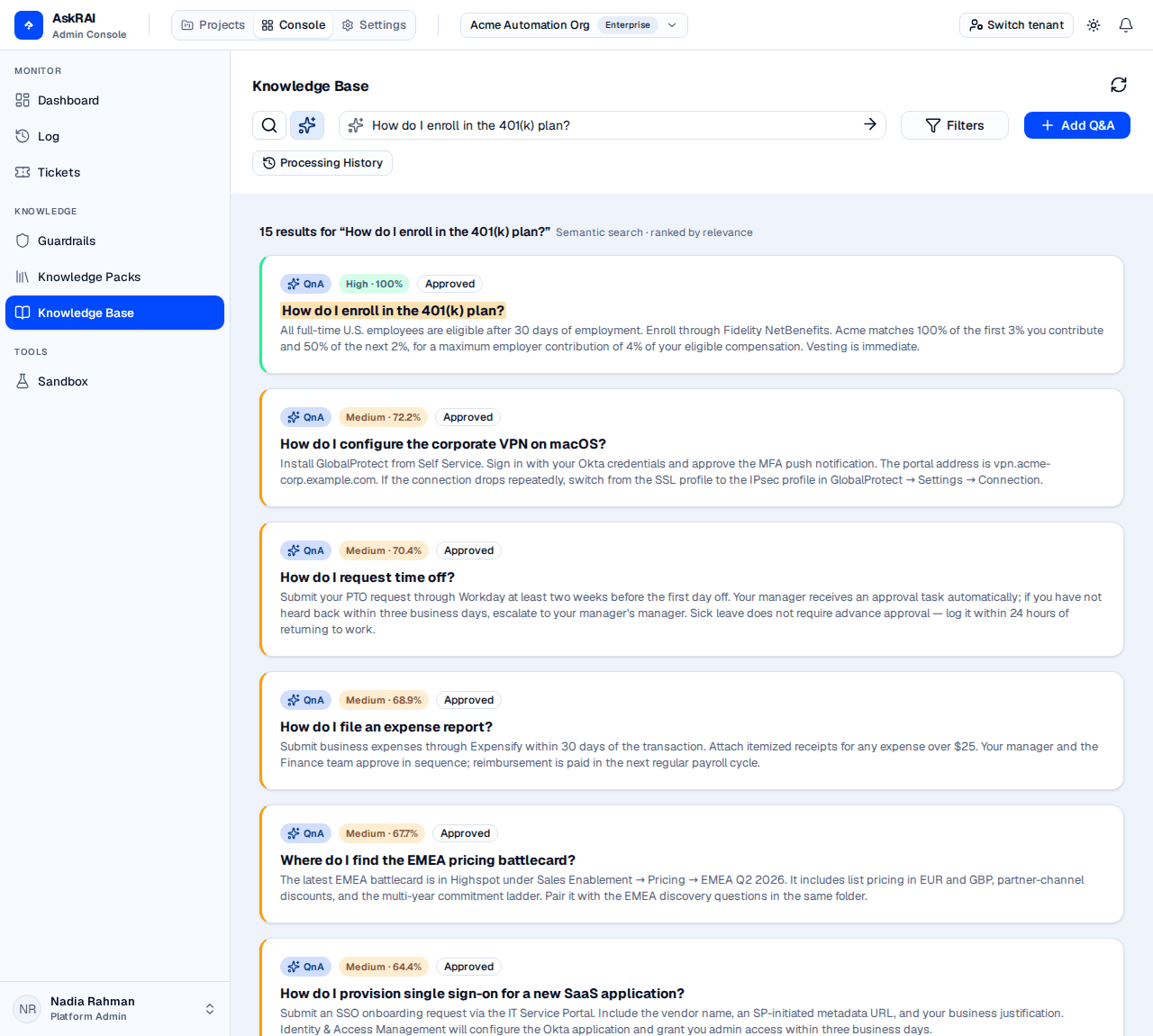
AI Search returns ranked semantic matches with confidence labels, highlighting the full query phrase wherever it appears in a title or preview.
Each result card shows:
- A type badge (QnA or Document) with an icon
- A confidence chip combining the qualitative label (Low / Medium / High) and the normalized score percentage
- The current status of the underlying item
- For document chunks, the chunk position within the source file (
Chunk 3/12) - The title and content preview, with the full query phrase highlighted wherever it appears verbatim
The result list is sorted by score. The score is a cosine similarity between your query and the item, expressed as a percentage: it is a measure of closeness in meaning, not a percentage of correctness, and unrelated text still scores around 50%. The colored bar on the left of every card mirrors the confidence level so you can scan a busy result set quickly.
AI Search only ever finds Approved items. Every vector query filters out anything that is not Approved — every Draft, Needs Attention, and Discarded item. So AI Search cannot be used to review unapproved content, and a Q&A missing from the results is far more likely to be unapproved than absent. To find items in any status, use Text Search with the Status filter.
Running an AI Search
Switch to AI Search
Click the sparkles icon in the search-mode toggle. The query field updates to the AI Search variant with a "Search semantically across the entire knowledge base" placeholder.
Type a natural-language query
Enter a question, paraphrase, or topic — anything from a single keyword to a full sentence. Queries are limited to 500 characters: the field does not stop you typing past that, but a longer one is refused when you run it.
Run the search
Press Enter or click the arrow button on the right of the field. A loading indicator replaces the arrow while the search runs; the response usually arrives within a couple of seconds.
Open a result
Click any Q&A card to open it in the details modal where you can edit, change status, or review history.
Document chunk hits are read-only in the result list. Clicking one does not open a preview — it shows a "Document hits are preview-only" notice. To edit the underlying chunk, switch to Text Search and find the parent document.
Advanced filters
Click Filters in the toolbar to open the filter panel. The panel opens in both search modes, but not every filter is applied in both — see the warning below.
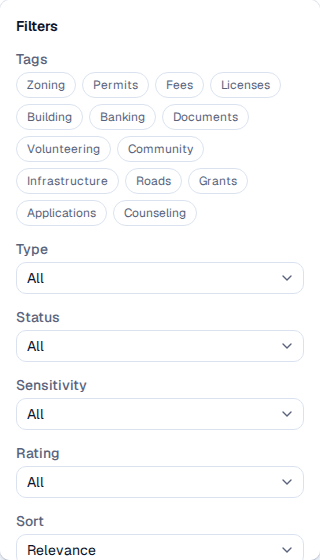
Four of these — Tags, Sensitivity, Rating and Sort — narrow Text Search only. In AI Search their chips still render, but just Status and Item Type reach the query.
| Filter | Options |
|---|---|
| Tags | Multi-select from a fixed built-in list. Matches items carrying any of the selected tags. Q&A pairs only |
| Type | All, QnA, Document |
| Status | All, Approved, Needs Attention, Draft, Discarded |
| Sensitivity | All, Public, Standard, Sensitive, Secret. Q&A pairs only |
| Rating | All, 5 stars through 1 star. Matches items rated exactly that number of stars — a "4★" filter does not include 5★ items. Q&A pairs only |
| Sort | Relevance, Newest, Oldest. "Relevance" sorts by most-recently-updated, identical to "Newest" |
In AI Search, only Status and Item Type are applied. The Filters popover still offers Tags, Sensitivity, Rating and Sort in AI Search mode, and their chips still render, but those four selections never reach AI Search — they narrow Text Search results only. Changing any filter while in AI Search also does not re-run the query: press Enter (or the arrow button) again to run it with the new Status or Item Type.
Even Status has little room to work in AI Search: only Approved items are retrievable, so filtering AI Search by Draft, Needs Attention or Discarded returns nothing. Use Text Search to review unapproved content.
Tags, Sensitivity and Rating apply to Q&A pairs only. In Text Search, selecting any of them narrows the result set to Q&As — every document chunk is excluded, even when Item Type is set to All, and even though chunk cards display a "Public" sensitivity badge and an empty 5-star rating (those are placeholder values the console paints; chunks carry no tags, sensitivity or rating). Combining one of them with Item Type = Document therefore always returns an empty result set.
"Relevance" is not a relevance ranking. In Text Search it sorts by most-recently-updated, exactly like "Newest": text results are ordered by date and never scored for relevance. Only AI Search ranks results by semantic relevance, and it ignores this Sort setting entirely.
The tag vocabulary is a fixed built-in list — it is not derived from the tags in your tenant, so a tag you invented on an item will not appear as a filter option.
Creating a Q&A item
Open the Add Dialog
Click Add Q&A in the top-right corner of the Knowledge Base page.
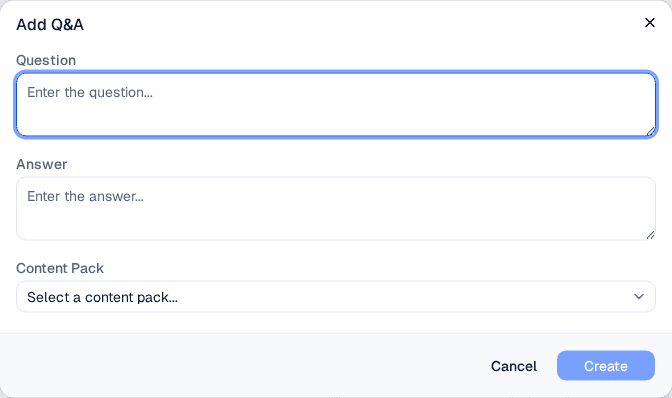
A pair saved here starts as Draft and is invisible to the assistant until you approve it. The content pack is optional — a Q&A can stand on its own.
Enter the Question and Answer
Type the question your users might ask in the Question field and the response the assistant should provide in the Answer field. Both fields are required.
(Optional) Select a Content Pack
Choose a content pack from the Content Pack dropdown. Only Q&A-type packs appear in this list. You can leave this empty — Create is enabled as soon as the question and answer are filled in — but an unfiled Q&A is harder to find and to manage in bulk, so pick a pack unless you have a reason not to.
Create the Item
Click Create. The item is saved with Draft status. A success notification appears and the dialog closes automatically.
The item is not searchable yet. A draft is excluded from the index, so the assistant cannot use it. Open the new item, click Approve, then click Save to publish it. In the details modal the quick-action buttons only stage the status change (the footer shows "You have unsaved changes"); closing without saving discards it. To publish in one click instead, use the card's three-dot menu — that writes the change immediately.
Write questions in natural language that matches how your users actually ask. For example, use "How do I request time off?" rather than "Time Off Request Procedure."
Viewing and editing items
Click any card — a Q&A pair or a document chunk — to open the details modal. The modal exposes two tabs at the top:
- Details — the editable view with status and sensitivity badges, quick-action buttons (Approve, Flag for Attention, Discard), inline-editable question and answer fields, rating, tags, and metadata.
- History — a chronological list of every prior version. The Compare button (enabled once two or more versions exist) opens a side-by-side diff view where you can pick a base version and a comparison target to inspect exactly what changed and who changed it.
For document chunks, the modal includes chunk navigation buttons (Previous / Next) to step through all chunks from the same source file, with a "Chunk N of Total" indicator.
Save your changes before navigating between chunks: the Previous / Next buttons are disabled while you have unsaved edits. Switching tabs is not blocked, so it is possible to move from Details to History with unsaved edits still pending — save first.
Changing an item's status
There are two ways to move an item through the workflow:
- From the card — open the three-dot menu on any card (Q&A pairs and document chunks both have one) and choose Approve, Discard, or Flag as Needs Attention. The change saves immediately.
- From the details modal — open the item and use the quick-action buttons (Approve, Flag for Attention, Discard). These buttons only stage the new status in the open modal; you must click Save to persist it. If you close the modal without saving, the staged status change is discarded.
Approving is what publishes an item: every query filters out anything that is not Approved, so the assistant cannot retrieve a draft until the item is approved and the change is saved.
Deleting an item
Open the item's details modal and click Delete at the bottom-left. The item is deleted the moment you click — there is no confirmation prompt and no undo. This is a hard delete, distinct from the Discarded status, which only hides the item from users and can be reversed.
Delete has no confirmation step. Unlike closing the modal with unsaved edits — which raises a discard-changes dialog — clicking Delete removes the Q&A item or document chunk immediately and permanently. Export your content first if you need a backup.
Reviewing ingestion runs
Edits you make here take effect when you save them — there is nothing to rebuild afterwards. To see what the platform ingested from an uploaded file, and how much knowledge came out of it, click Processing History in the toolbar; the page is described under Knowledge Packs.
Uploading files
Files are uploaded through Knowledge Packs. What the platform produces from a file depends on the type of the pack you upload it to.
Uploading to a document-type pack
When you upload a file to a document-type knowledge pack, the system automatically:
- Extracts the PDF's text layer — the only document format a document-type pack accepts.
- Splits the text into overlapping chunks, each carrying the page numbers it came from.
- Creates individual document chunk items in the Knowledge Base, each created Approved.
Each chunk can then be reviewed, edited, approved, or discarded independently.
Uploading to a Q&A-type pack
A file uploaded to a Q&A-type pack becomes Q&A pairs, not document chunks. There are two paths:
- CSV or XLSX — imported directly, row by row, into question/answer pairs. Document parsing is skipped entirely. Both formats are accepted by Q&A-type packs only.
- PDF — parsed and chunked like a document, after which the platform generates Q&A pairs from the chunks.
Both paths create the pairs with Draft status, so nothing they produce is retrievable until you review and approve it.
There is a size ceiling of 100 MB per file, refused before the transfer starts. A second ceiling applies after parsing: a source that yields more than 10,000 items — chunks or Q&A pairs — fails at that point, so a large, text-dense PDF can upload successfully and then fail during processing. Document-type packs accept PDF only; Q&A-type packs accept PDF, CSV and XLSX.
Field reference
Q&A item fields
| Field | Description | Required |
|---|---|---|
| Question | The question users might ask | Yes |
| Answer | The response the assistant provides | Yes |
| Content Pack | Which collection this item belongs to. Optional — a Q&A saved without one is simply unfiled | No |
| Status | Controls visibility: Approved (live), Draft (hidden), Needs Attention (flagged), Discarded (removed). New Q&As start as Draft and are not searchable until approved | Set on create |
| Sensitivity | Access level: Public, Standard, Sensitive, or Secret | No (defaults to Public) |
| Rating | Curator quality assessment from 1 to 5 stars | No (defaults to 0) |
| Tags | Categorization labels. The Filters popover offers a fixed built-in list; the item's own editor also accepts free text, which is saved on the item but cannot be filtered on | No |
Document chunk fields
| Field | Description | Editable |
|---|---|---|
| Title | Document filename (without extension) | Yes |
| Content | The text content of this chunk | Yes |
| Chunk Index | Position within the source document (e.g., Chunk 3 of 12) | No |
| Status | Same status workflow as Q&A items. Chunks are created Approved | Yes |
Page numbers are captured during parsing and kept on the record, but the console does not display them today. Chunks carry no section heading: text extraction yields the page's text, not the document's structure.
AI Search result fields
| Field | Description |
|---|---|
| Type | QnA or Document — controls which icon and color the badge uses |
| Confidence | Normalized score from 0 to 100% with a qualitative label (Low / Medium / High) |
| Status | Current lifecycle status of the underlying item |
| Chunk position | For document hits, the chunk index and total count from the source file |
| Title | The Q&A question or the document title, with the query highlighted where it appears as a whole phrase |
| Preview | The first ~3 lines of the answer or chunk content, with the query highlighted where it appears as a whole phrase |
Related pages
- Knowledge Packs — create content pack containers and upload documents
- Guardrails — set safety policies that evaluate user input
- Conversation Logs — see how the assistant uses knowledge items in responses
- Confidence Thresholds — tune the minimum scores the runtime accepts before answering from a knowledge item